

What If The Only Thing Standing Between You And Beautiful Art... Is 30 Minutes A Day?

Masterclass for Procreate
By Freya Kotchakorn
You know that gap between watching the tutorial and your actual result? That's not talent. That's missing steps. I'll show you every single one, with step-by-step system that's helped 80,000+ beginners create beautiful digital art.
is only avaliable for:




Level
Beginner-Intermediate
Format
Online video
Narration
English
Subtitles
English and 30 others
Contents
13 Modules, 112 Lessons, 40+ hours
You've Always Wanted To Draw. Now Your iPad Can Make It Happen.
You know that feeling when "The tutorials always look so much better than mine does'?"When you watch a lesson thinking you can follow along, but then "There's a few things I just don't seem to be able to get, no matter how much I watch'?"
You're not alone.
The problem isn't you. It's that most courses "felt really overwhelming, like they were meant for people that already understood the basics".
Finally, a Course That Actually Teaches You From the Very Beginning
What makes this different from everything else you've tried:

You will learn Procreate from scratch
I assume you know nothing and build every skill step-by-step.

Your Work Will Actually Look Like the Examples
The #1 complaint about other courses? "My version looks nothing like theirs." I show you exactly why yours looks different and how to fix it every single time.

Never Gets Outdated or Disappears
Procreate updates constantly. So does this course. While other courses become obsolete in months, you always have the latest techniques at your fingertips.

Finally Get Results You're Proud Of. Even If You Only Have 30 Minutes
This course is designed so your artwork actually matches what you see demonstrated. Each lesson builds on the last, so 30 minutes today plus 30 minutes tomorrow equals real progress.
Why Your Previous Attempts Failed (And What I Do Differently)
What makes this different from everything else you've tried:
You will learn Procreate from scratch
Start with zero experience. We begin with the basics: which tools do what, how layers actually work, why your strokes look different than mine. Build real skills through real projects, not theory you'll forget tomorrow.
Your Work Will Actually Look Like the Examples
Other tutorials skip the crucial steps. I don't. You'll see exactly where I place each stroke, which color I pick, when I switch brushes. Follow along and your canvas will match mine, not some watered-down version.
Never Gets Outdated or Disappears
Pay once, keep everything forever. 400+ brushes, all lessons, every update. Other platforms disappear or start charging monthly. This is yours. No subscriptions, no expiration dates, no surprise charges.
Finally Get Results You're Proud Of
Stop hiding your work. Stop saying "I'm not really an artist." Create pieces good enough to post, print, gift, or sell. The kind of art that makes people ask where you studied.
Master the basics
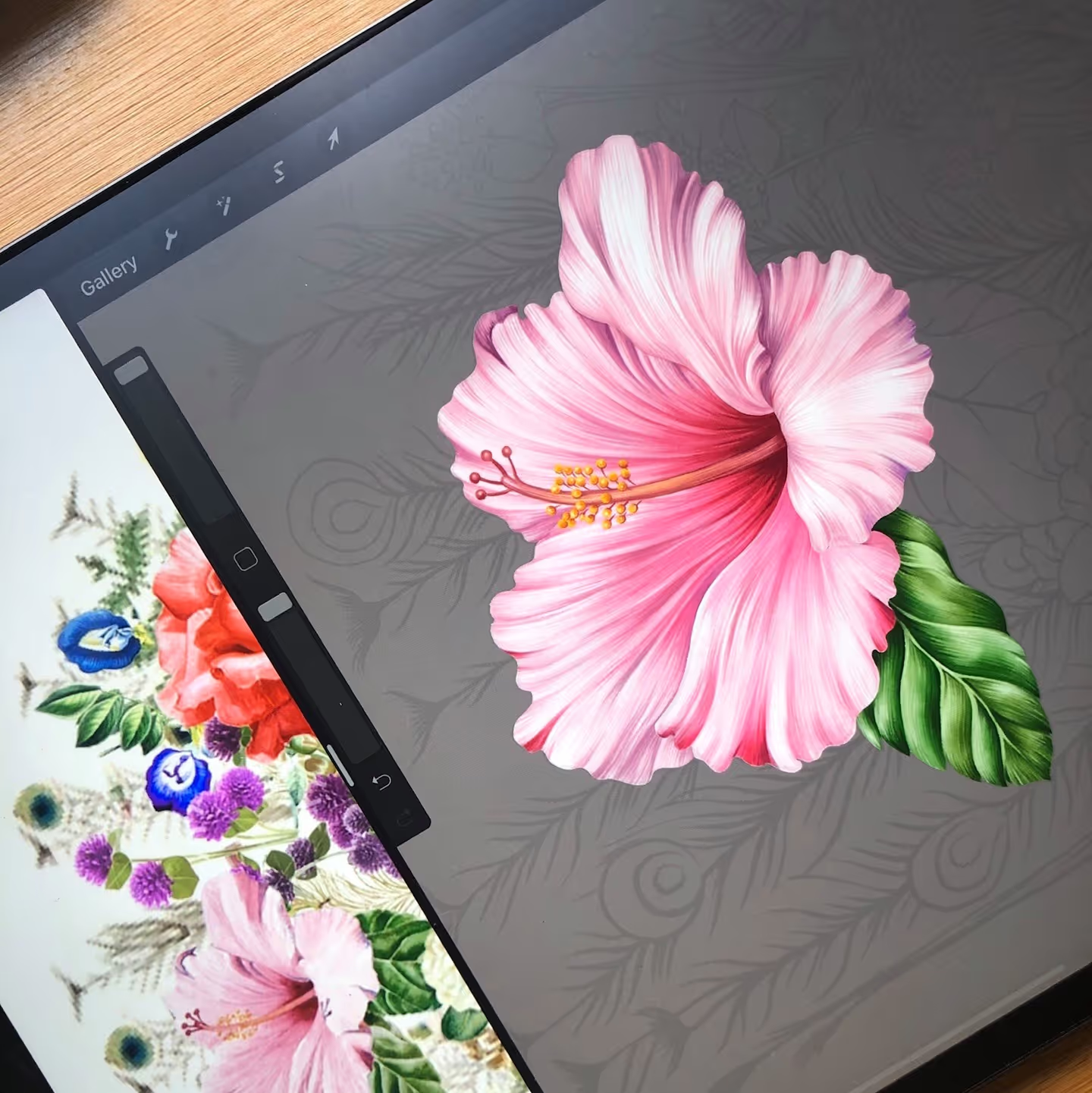
By starting with different flower petals, learning about all the different types of pollen and getting to know various types of leaves, we’ll build a strong foundation on top of which you’ll be able to build on.
Colour the right way
You’ll learn how to properly sequence your layers in order to capture the natural essence of your botanical designs. In addition to that, you’ll learn how to select the exact colours and apply them to really nail the natural look of the flower.
Use the right brushes
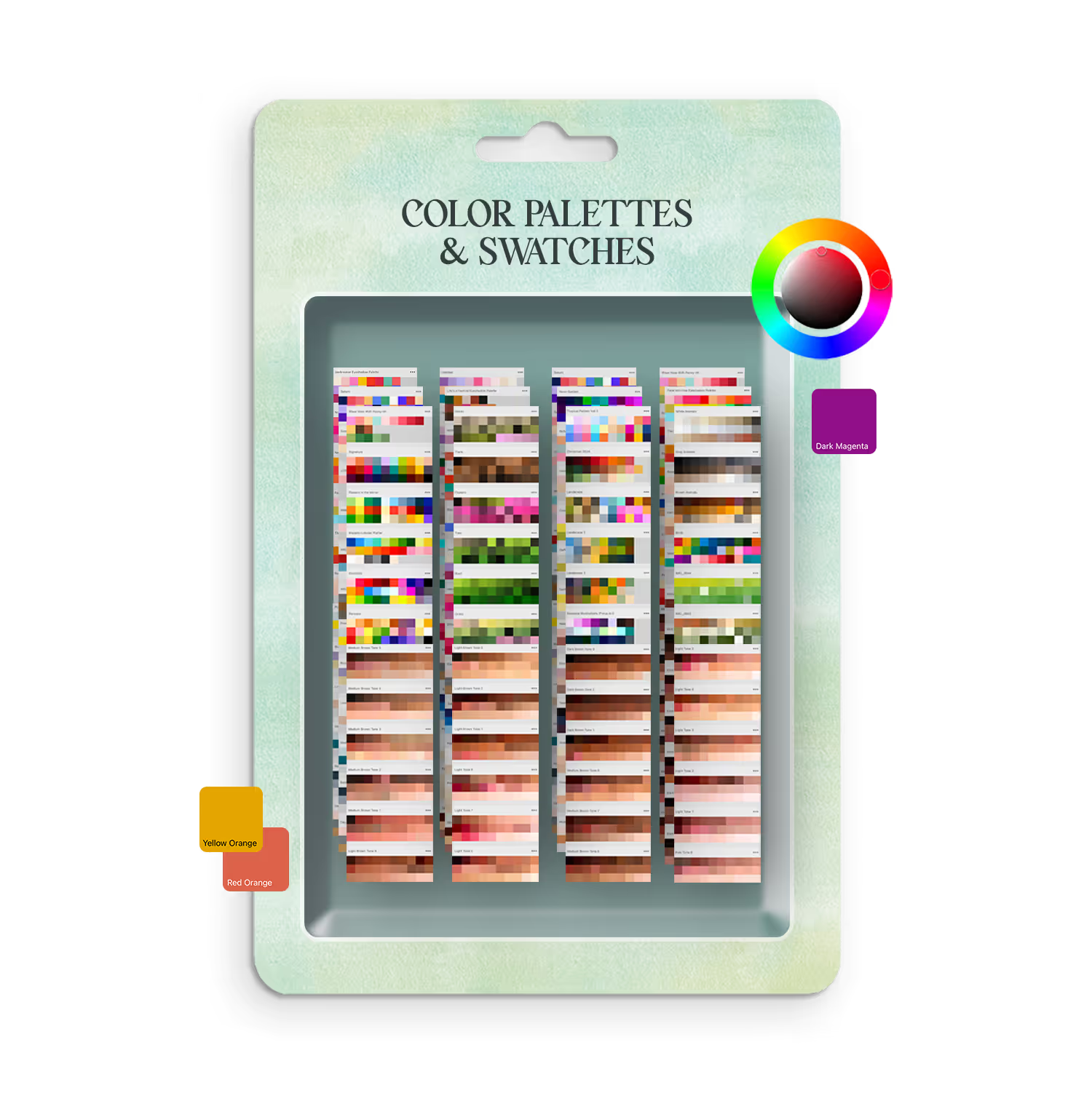
By enrolling in this course, you’ll get a set of brushes that we will use for the exercises. We’ll learn which brushes to use for different types of drawing techniques. You’ll also master drawing the lines to make your flowers really pop!
Capture the details
Paint flowers that people will recognize right away. Learn to recognize and capture complex details that make each flower unique.
You'll learn by doing
Almost every lesson gives you a result you can see on your canvas. And because you keep lifetime access, you can go at your own pace without pressure.

Today
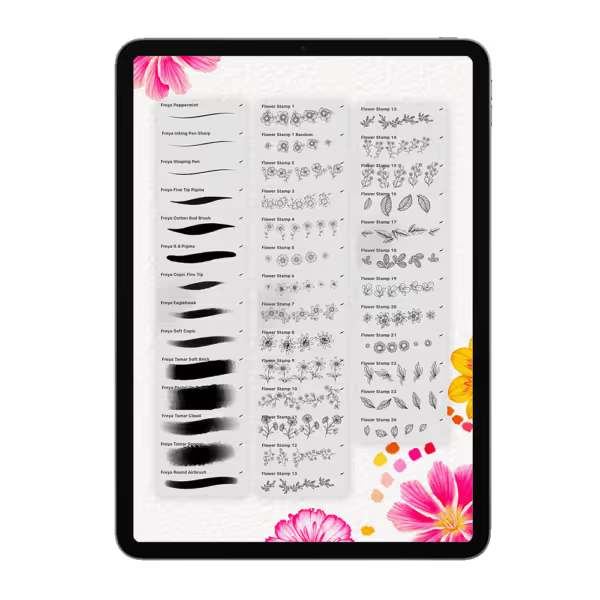
Get the exact brush pack I use in the course. Install them in 2 minutes and you're ready to start your first lesson.
Week 1
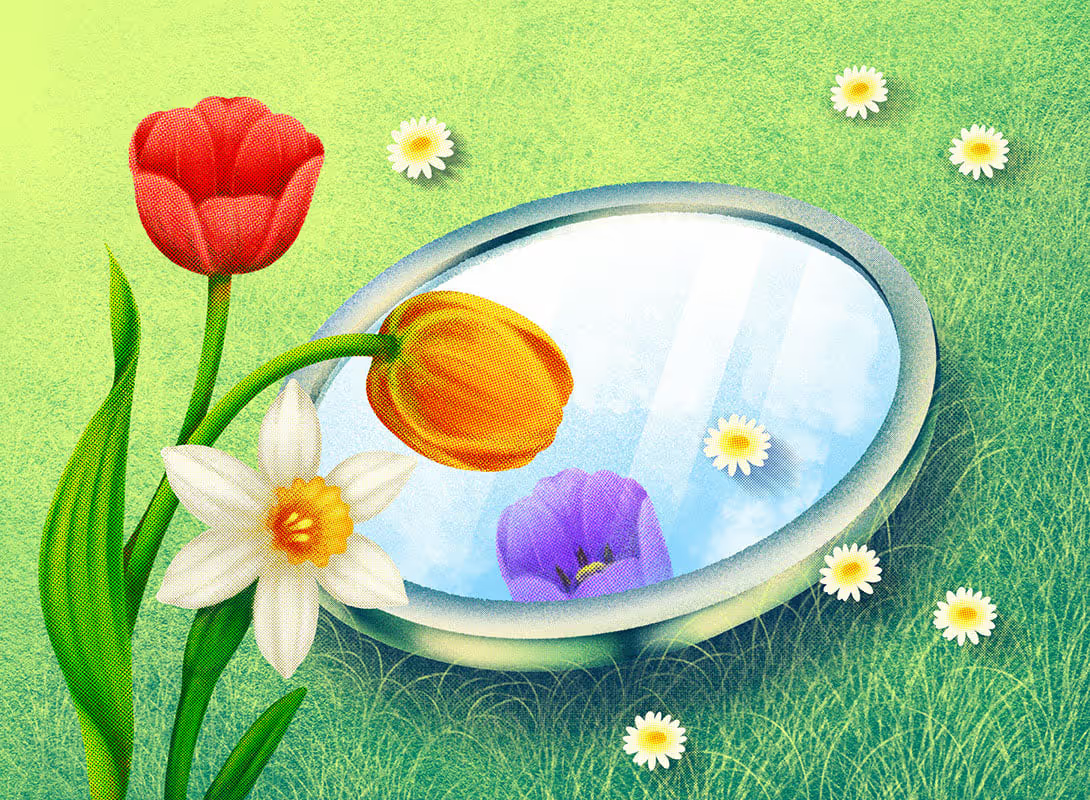
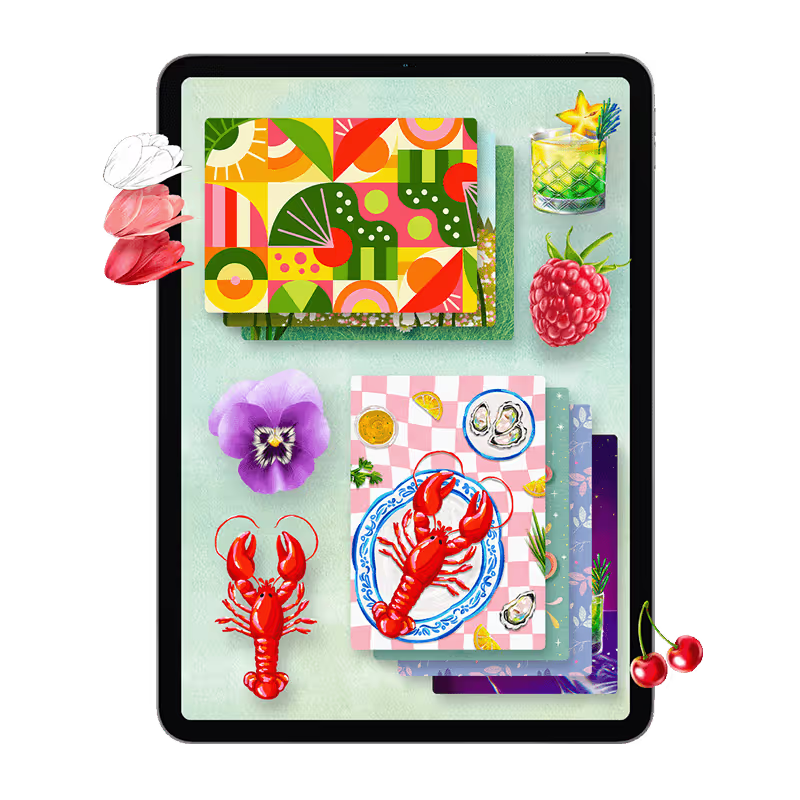
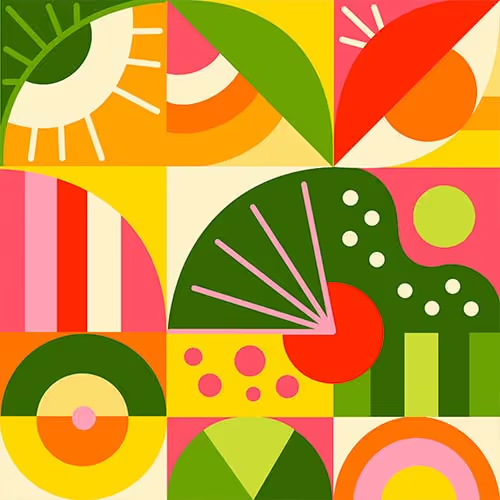
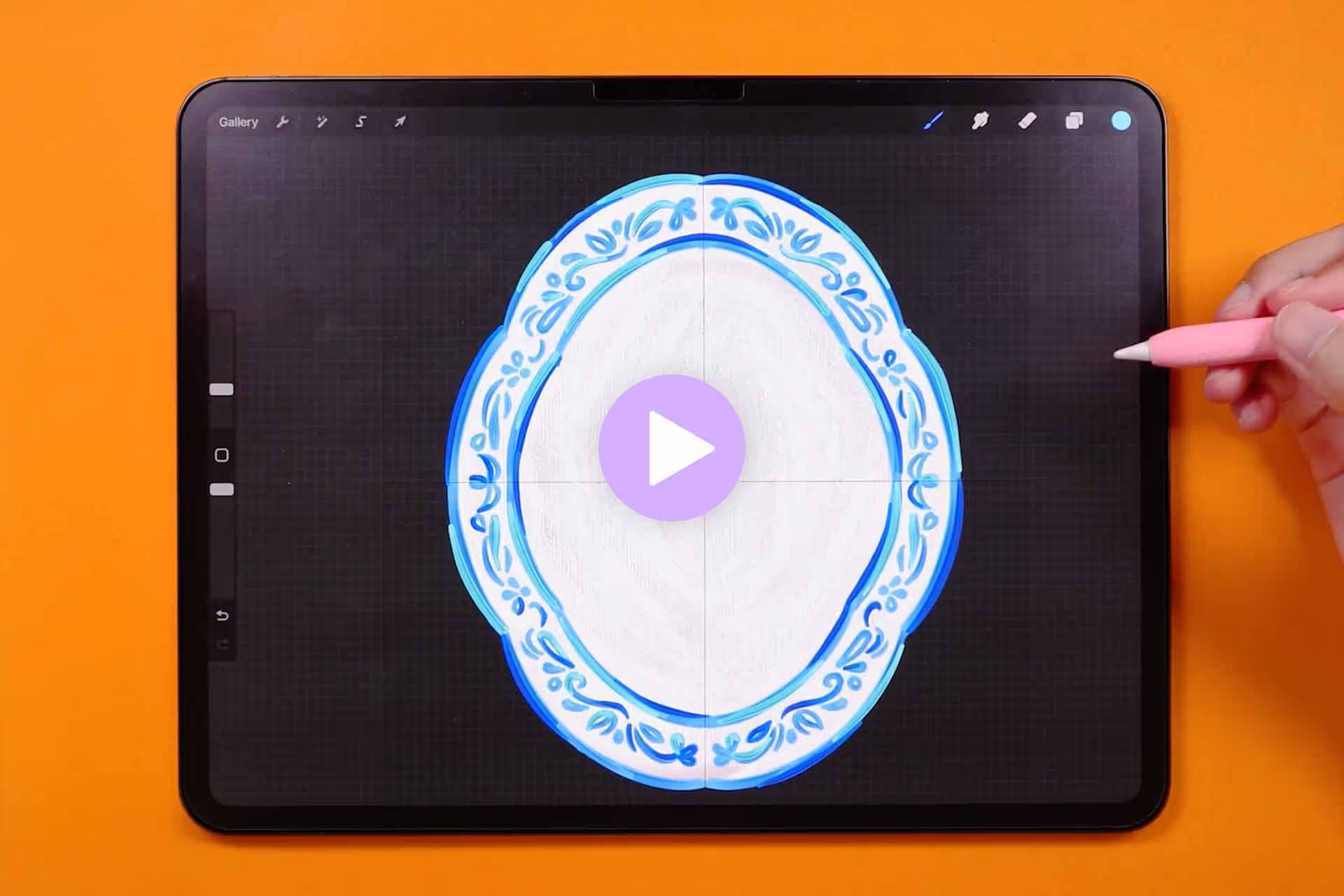
You'll paint this. An actual artwork you can show people.

Month 1
Complete 5+ full projects across different styles. Discover which techniques click for you and which subjects you love drawing most.
Month 2
Master advanced brushes and blending techniques. Your work starts looking polished instead of amateur.
Month 3
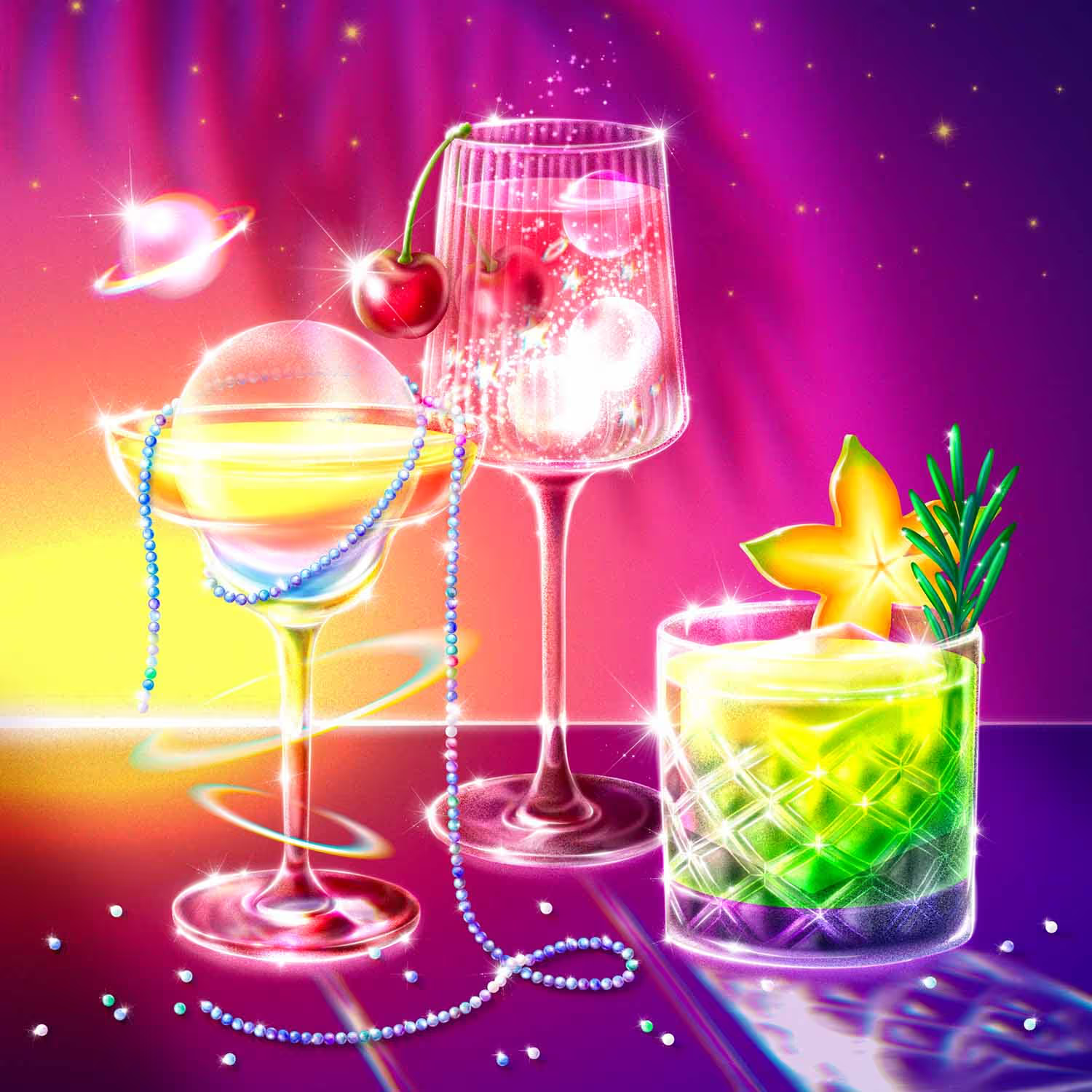
Build a portfolio of 15+ pieces. You'll have the skills and confidence to create whatever you imagine, not just follow tutorials.
For over 15 years I’ve been doing illustrations for brands like Louis Vuitton, Tiffany & Co. and Sephora!
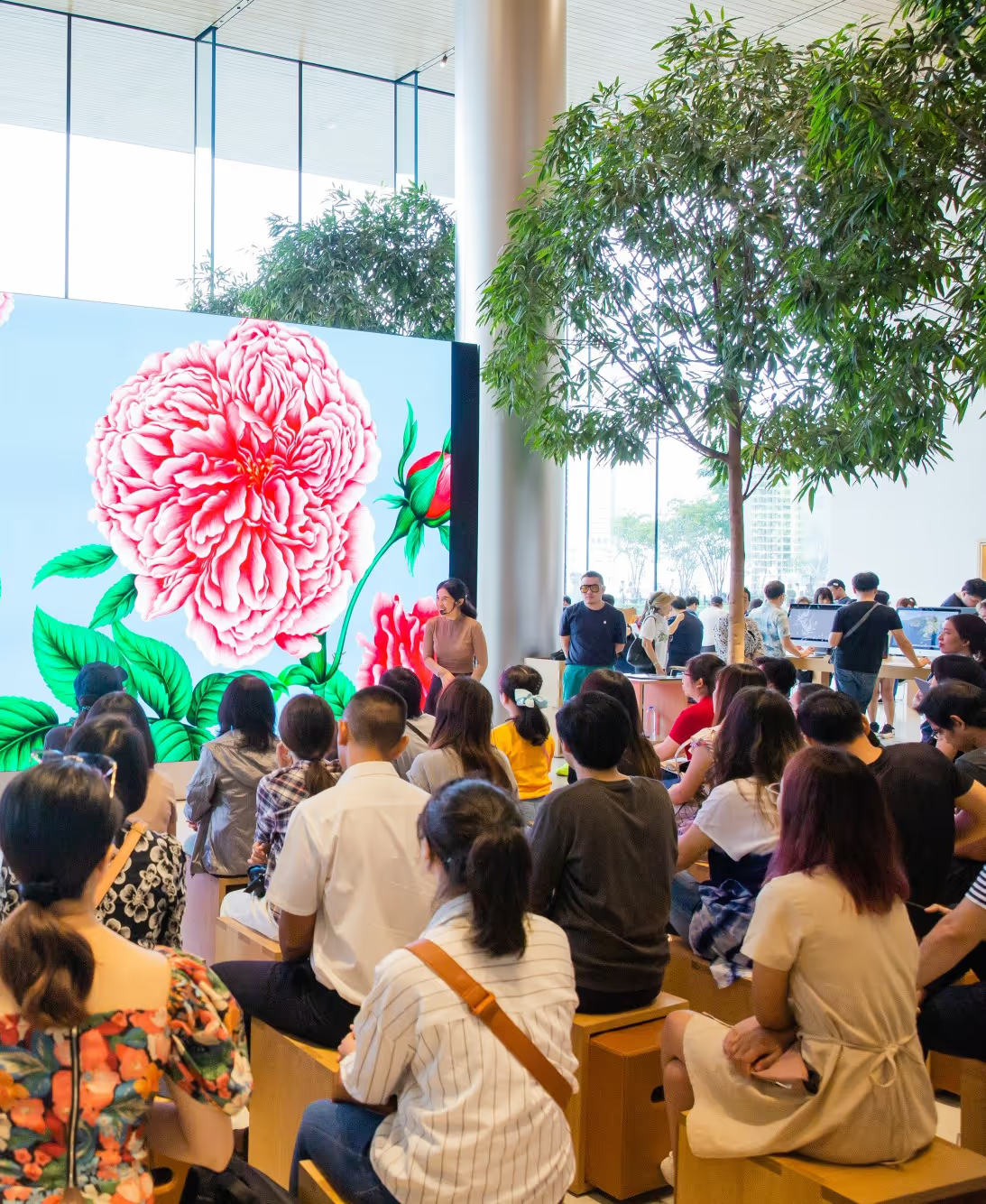
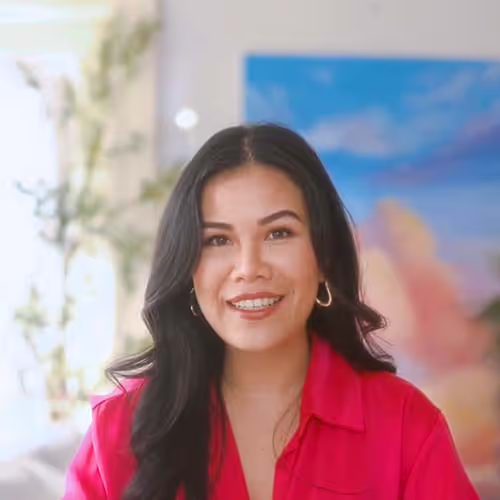
I’m Freya Kotchakorn. My digital illustrations have been used by Louis Vuitton, Tiffany & Co., and Sephora, and I’ve spoken at Apple Store events to teach Procreate techniques.
Yet my favorite work isn’t for big brands, it’s helping complete beginners surprise themselves with what they can create.
My favorite feedback is when they tell me: 'It felt very geared towards beginners wanting to learn procreate... it felt like it was attainable even for someone like me who has very little experience.'
That's exactly what I designed this course to do. Make the 'impossible' feel completely achievable.


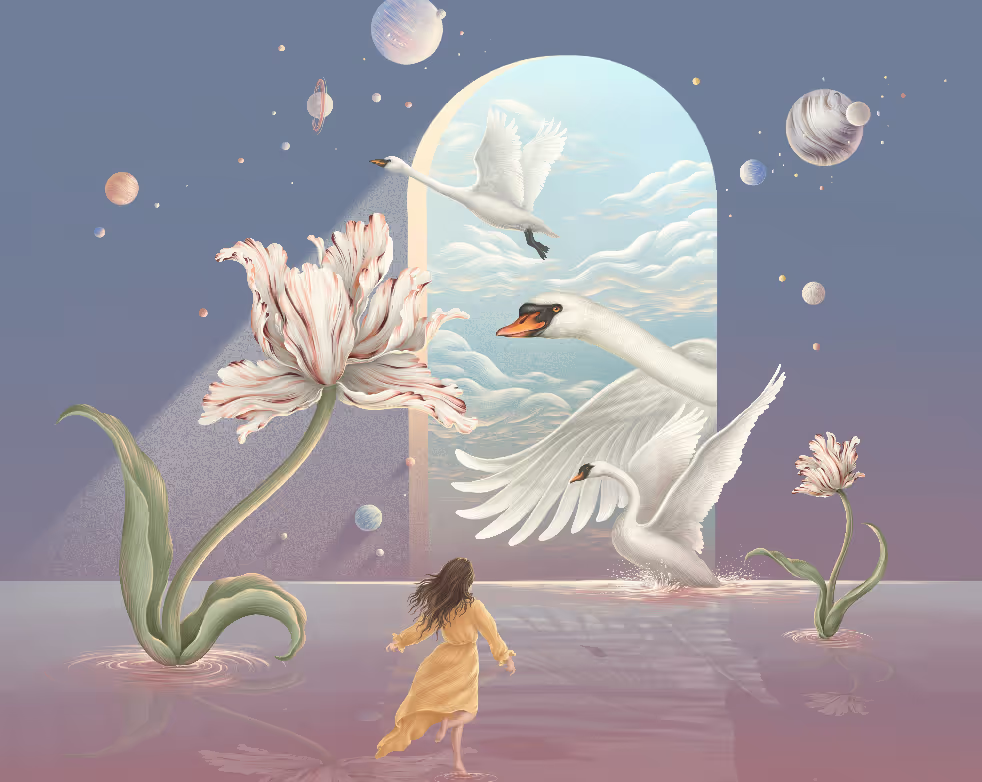
Your ultimate guide to becoming an independent digital artist
It doesn't matter if you’re a complete beginner with zero experience in drawing, or a seasoned illustrator. We’ll start slowly with the basics and move onto more complex principles. In over 100 lessons, you will:
- Learn how to set-up your digital workspace
- Learn how to use the main tools and features Procreate offers
- Learn how to select appropriate brushes that suit your drawing and your style
- Practice the stroke pressure and improve your drawing technique
- Learn about light and shading
- Learn secret shortcuts that allow you to work even faster and in more detail
- Uncover tips and tricks you only stumble upon after using Procreate for a long time
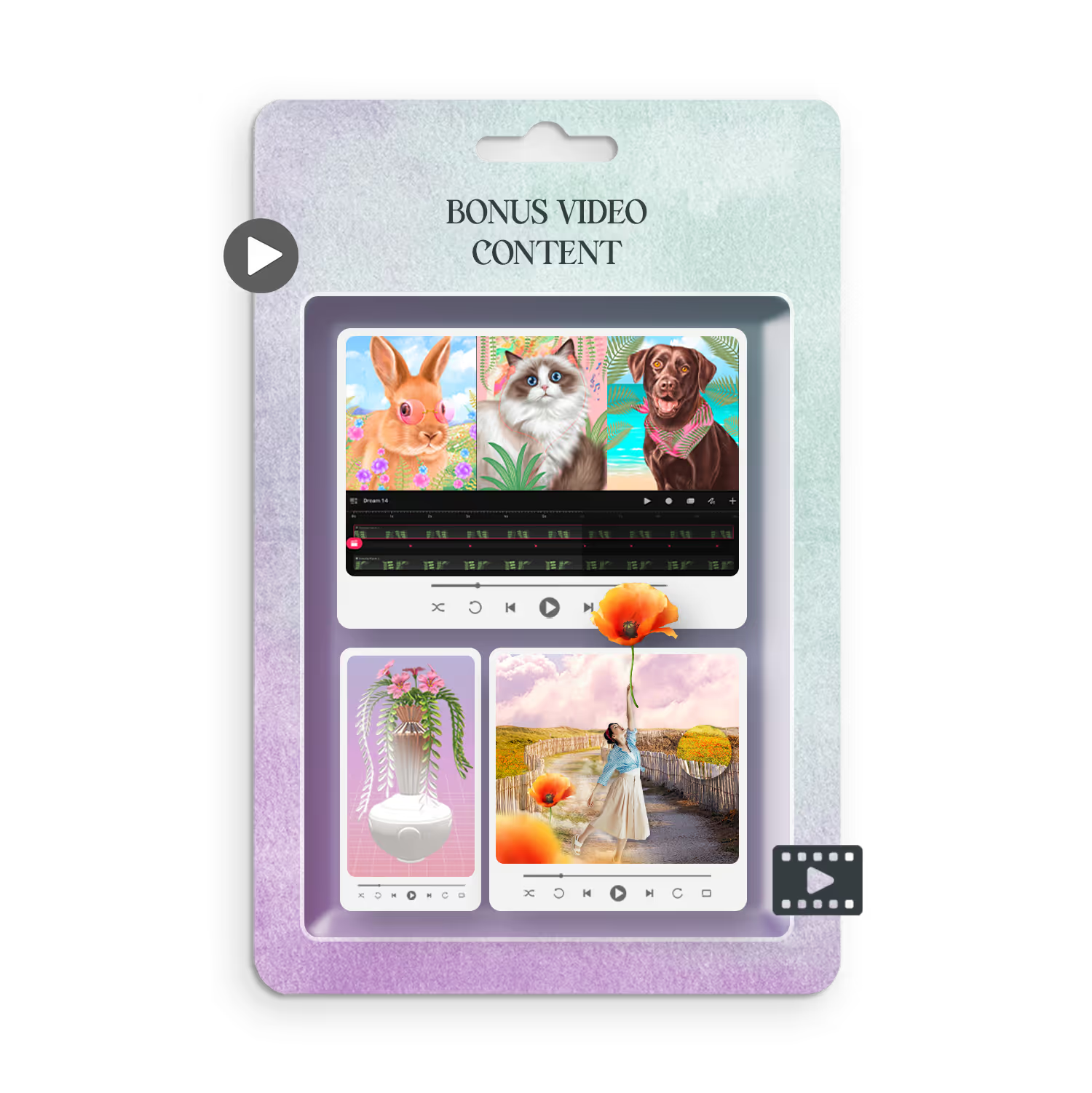
- Learn how to do time-lapse videos of drawings
- Learn how to import files and export final results
Special Black Friday Offer
Is only avaliable for another:

Why Digital Art Changes Everything
When I did my paintings and illustrations by hand, I always had to have a dedicated working space large enough to take up half of my room.
Since I started using Procreate, all I need is my iPad and an Apple Pencil.
A set of decent brushes, watercolors, and quality paper can set you back $200 or even more. Add a high-detail scanner and a quality computer with software capable of precisely cutting your work... And before you know it, you've spent way over $1000 before you even started painting.
In Procreate, everything is just a few clicks away.
But This Is The Real Value
You can draw on your lunch break. While your kids nap.
On vacation, you can capture memories in art.
When you're stressed, you have an outlet that's just yours.
When you'll have grandkids visit, you will be the one teaching them.
When people ask about your hobbies, you can say "I'm an artist."
That's what I'm really offering. For you to become the artist you've always wanted to be.
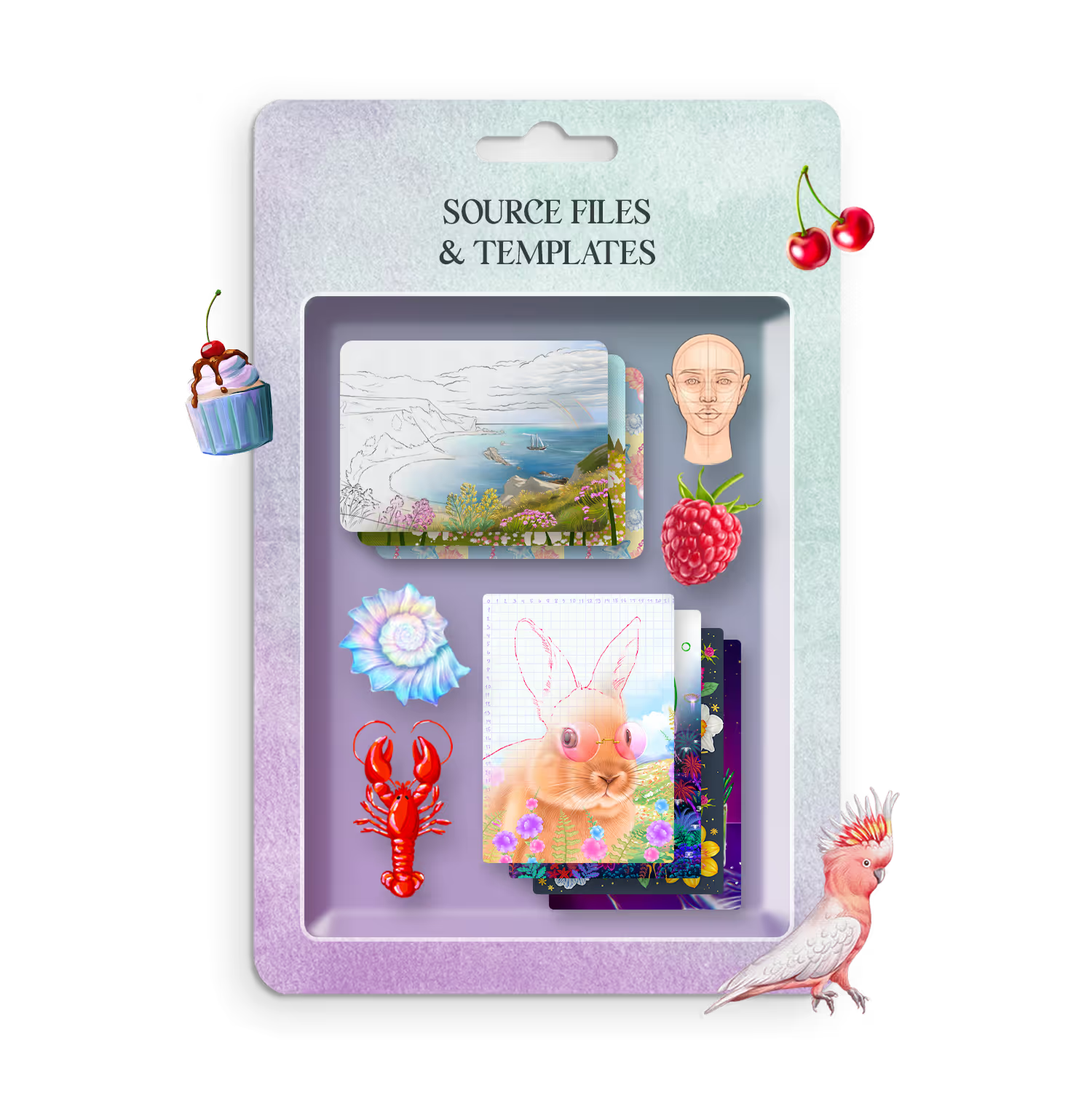
You'll also get $137 in gifts
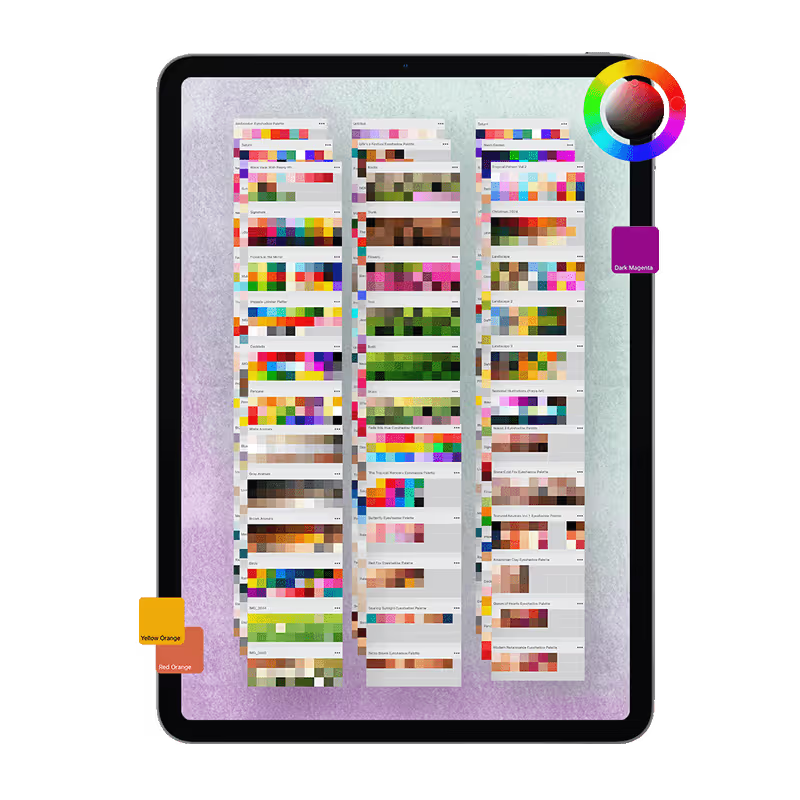
The exact same brushes and resources I use for Louis Vuitton, Tiffany & Co, and Sephora. Everything you need to create like a pro, yours to keep forever.
.avif)
.avif)


Lesson Curriculum
Not sure what to expect? Here's your complete roadmap from day one to becoming a confident artist!
Section 1: Welcome & Getting Started

Get set up and comfortable before we dive in
1 Introduction
2:02
How to use the platform
access to facebook private group
Module 2: Core Tools & Interface (3 hours 36 minutes)
Master the essentials so you never feel lost

2:02
4. Navigating the Gallery – Your Project Hub in Procreate

5. Bringing In and Saving Out – How to Import & Export Your Work
5:31

6. Setting Up Your Canvas – The First Step to Any Artwork
2:58

7. Understanding the Workspace – Tools, Menus & Where to Find Everything
2:38

8. Layer Organization - How to Tidy Up Layers and Avoid Confusion
3:57

9. Mastering Basic Layer Actions – Rename, Fill Layer, Select, and Clear
1:59

10. Drawing Perfect Shapes With QuickShape
2:08

11. How to Blend Like a Pro With the Smudge Tool
3:00

12. Using the Eraser – Clean Up Your Artwork with Precision
1:10

3:15
13. Organize Your Artwork – How to Group and Merge Layers

5:15
14. Unlocking the Color Panel – Modes, Tips & Palette Building

15. Move, Resize, and Rotate With the Transform Tool
3:03

5:35
16. Isolate and Edit With the Selection Tool
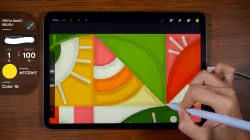
17. ✍️ Practice Perfect Shapes – QuickShape Exercise
49:13
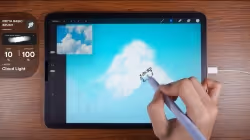
18. ✍️ Blend and Clean – Smudge & Eraser Practice
37:06

19. ✍️ Color Like a Pro – Practice 4 Easy Ways to Fill Color
37:50
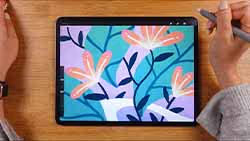
20. ✍️ Masking Made Easy – Practice Alpha Lock, Layer Mask & Clipping Mask
17:04

39:06
21. ✍️ Learn to Pick Colors from Photos – A Practical Palette Exercise
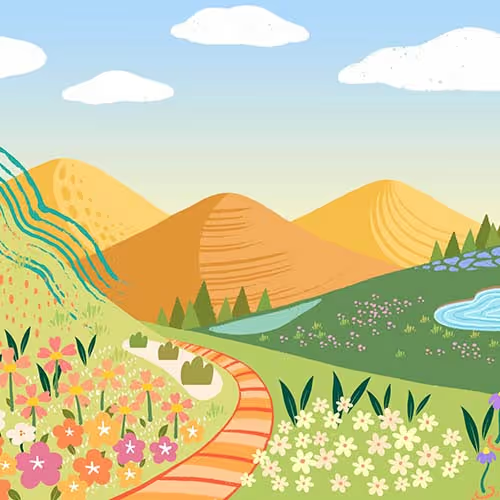
Module 3: Create While You Learn (6 hours 37 minutes)
Build real skills through hands-on projects

12:18
22. ✍️ 5 Fun Ways to Recolor Your Artwork
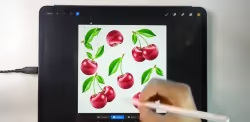
23. ✍️ Create a Simple Pattern Using Transform & Selection Tools
5:06
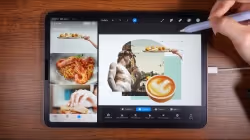
23:58
24. ✍️ Create a Collage Look Using Transform & Selection Tools

18:40
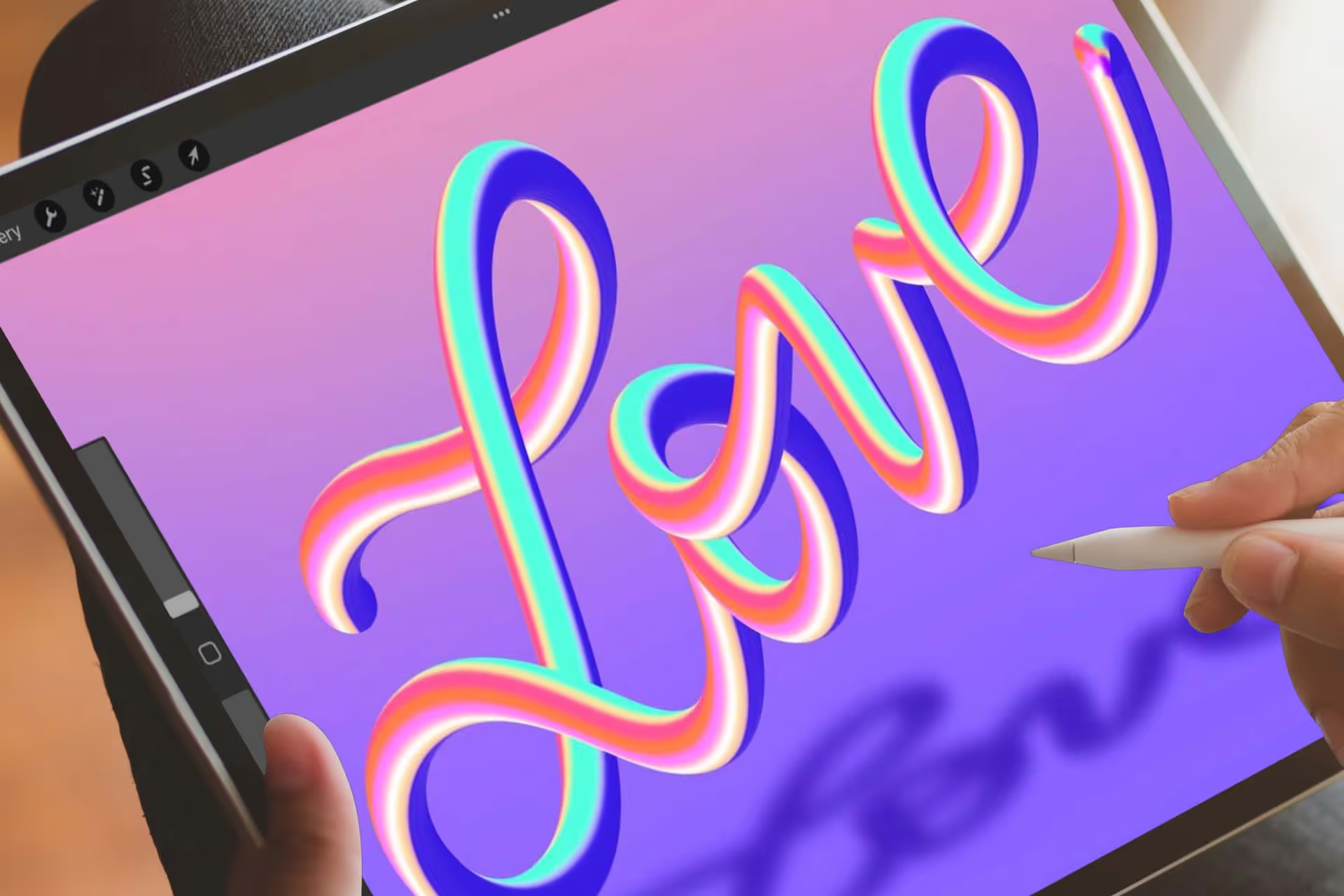
25. ✍️ Create 3D-Looking Lettering With the Smudge Tool

26. ✍️ Create Your Own Solid Stamp Brushes (Landscape Theme)
47:00

1:15:12
27. ✍️ Create a Playful Landscape – Easy Step-by-Step Exercise

28. ✍️ Create a Rubber Stamp Brush Using Layer Mask
32:49

36:22
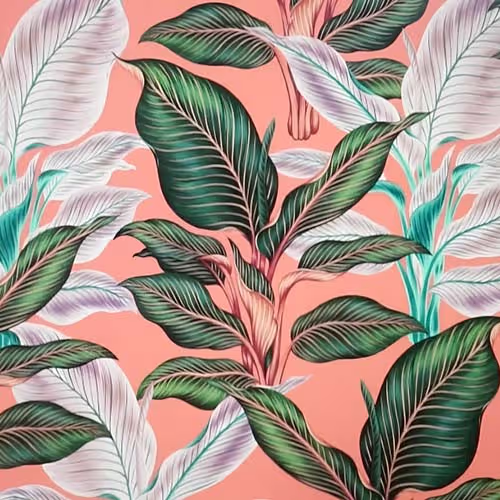
29. ✍️ Create a Repeating Leaf Pattern From Scratch

30. ✍️ Photo Manipulation – Create a Surreal Floating Woman Scene
2:24:22

3:56
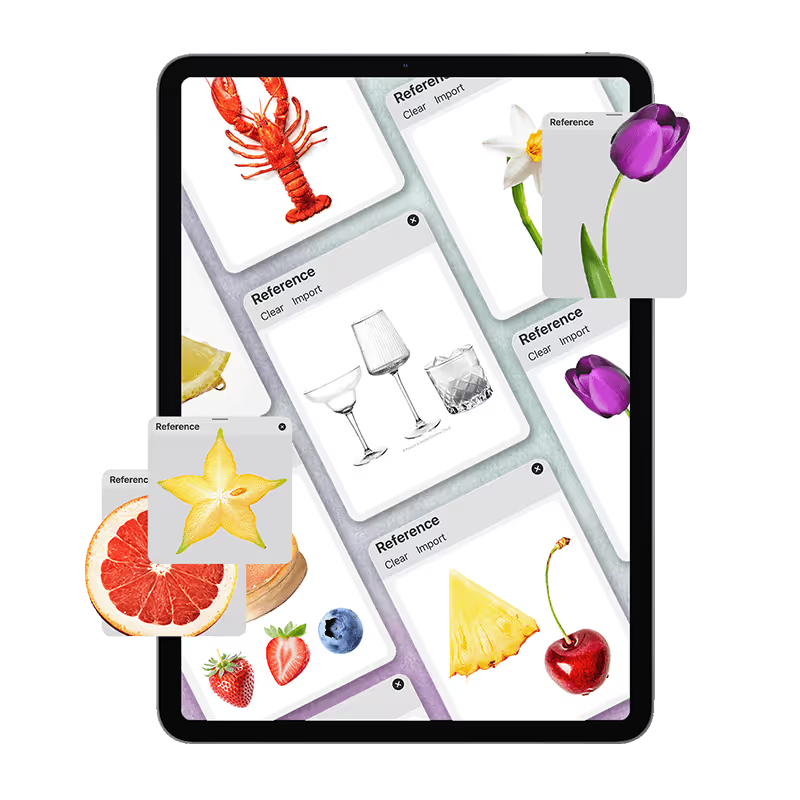
31. ✍️ Learn Reference Layers & Color Fill – Practice Exercise
Module 4: Professional Techniques (46 minutes)
Add polish that makes your art stand out

3:03
32. Light, Shadow & Texture – Exploring Blend Modes in Procreate

33. Invert Colors on a Layer – Create Cool Effects With One Tap
2:09
1:39
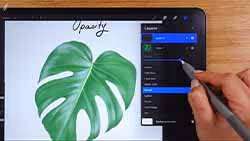
34. Fade or Bold – Learn to Control Opacity for Better Effects
2:57
35. How to Blur in Procreate – Add Depth & Atmosphere

36. Make it Textured – How to Use Noise in Procreate
2:48

37. Make Your Details Pop – How to Use the Sharpen Tool
1:35
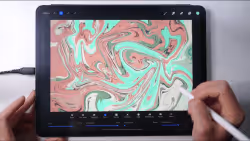
38. Swirl & Flow – Learn Liquify by Making Pretty Marble Art
4:56

39. How to Use Clone Tool – Duplicate Textures & Fix Flaws
2:07

40. Get the Perfect Look – Color Editing Basics with HSB, Balance & Curves
4:14

41. Unlocking Visual Effects - Mastering Gradient Map, Bloom, Glitch & More
7:14

42. ✍️ Practice 4 Easy Ways to Create Beautiful Gradients
9:42
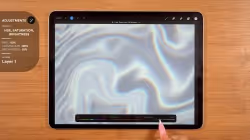
43. ✍️ Create a Shiny Iridescent Background
6:17

Module 5: Smart Workflows (2 hours 8 minutes)
Work faster and stay organized

1:34
44. Bringing in Images – Insert Files or Photos to Work With

1:50
45. Draw with References – Add Private Photos & Canvas View

46. Use Canvas Reference for Face Painting and Overlay Art
3:06

47. Move Art Between Canvases – Cut, Copy, Paste & Copy Canvas
2:05

48. Adjust Canvas Size – Trim or Expand Your Workspace
3:03

3:08
49. Make Comics, Journals, or Storyboards With Page Assist

50. Bring Your Art to Life – Getting Started With Animation Assist
6:27

51. Understanding Onion Skin Color – See Your Animation Frames Clearly
1:50
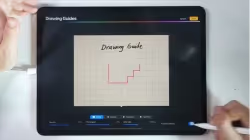
52. Edit Drawing Guide for Accurate Grids & Perspective
3:28
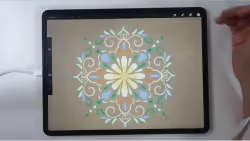
53. Make Perfect Reflections With the Symmetry Drawing Guide
3:40

54. Get Your Art Out of Procreate – Share, Save, and Send
2:30
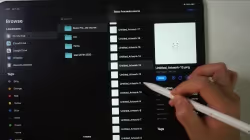
55. Export Your Layers – Turn Them Into Images, PSDs, or Animations
1:45
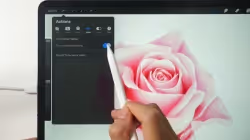
2:56
56. Record Your Drawing Process – Procreate Timelapse & iPad Screen Recording

57. Procreate General Settings – Customize Your Interface & Tools
2:50

8:43
58. Gesture Controls Explained – Set Up Your Favorite Shortcuts
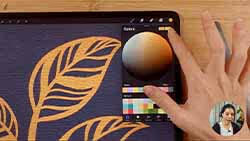
4:46
59. Helpful Settings and Features You Might’ve Missed – Language & More
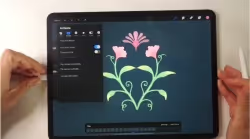
60. ✍️ Make a Moving Image With Symmetry + Animation Tools
7:11

1:11:50
61. ✍️ Animate a Blooming Bouquet With Color-Changing Brushes
Module 6: Art Fundamentals (1 hours 53 minutes)
Essential skills that improve everything you create

62. ✍️ Shading Basics – Practice Brush Pressure & Color Transitions
6:16
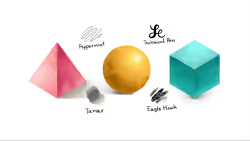
63. ✍️ Realism With Simple Shapes – Light, Form & Shadow
25:09
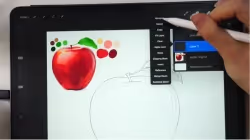
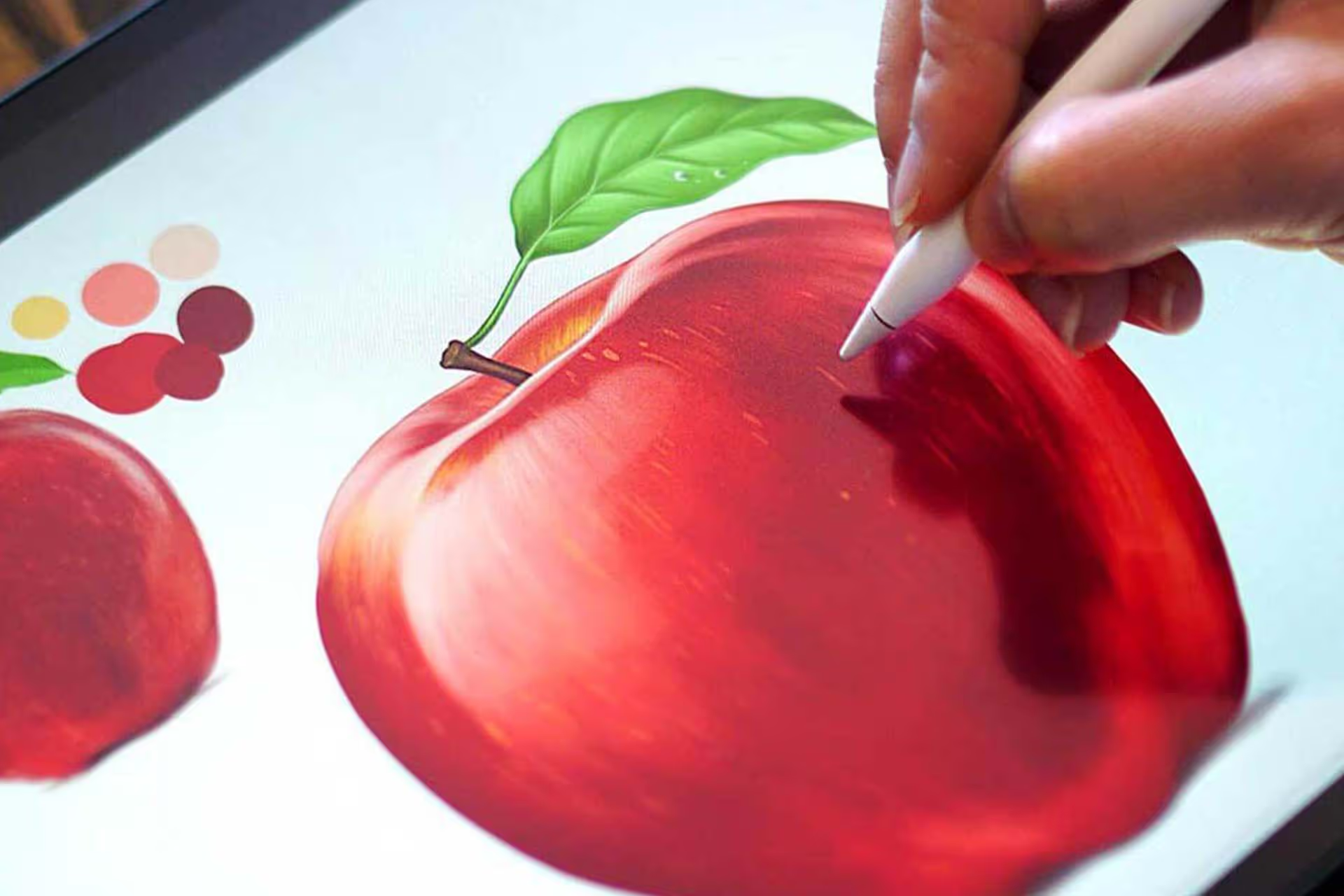
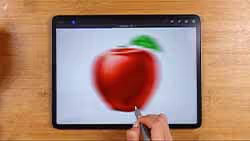
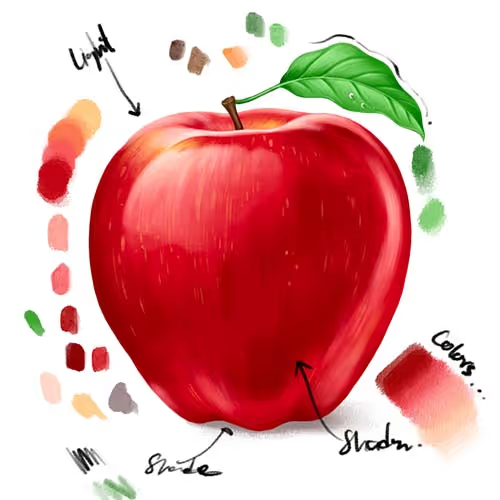
64. ✍️ Painting an Apple – Build Realism With Texture and Depth
37:30
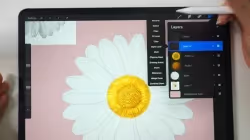
38:29
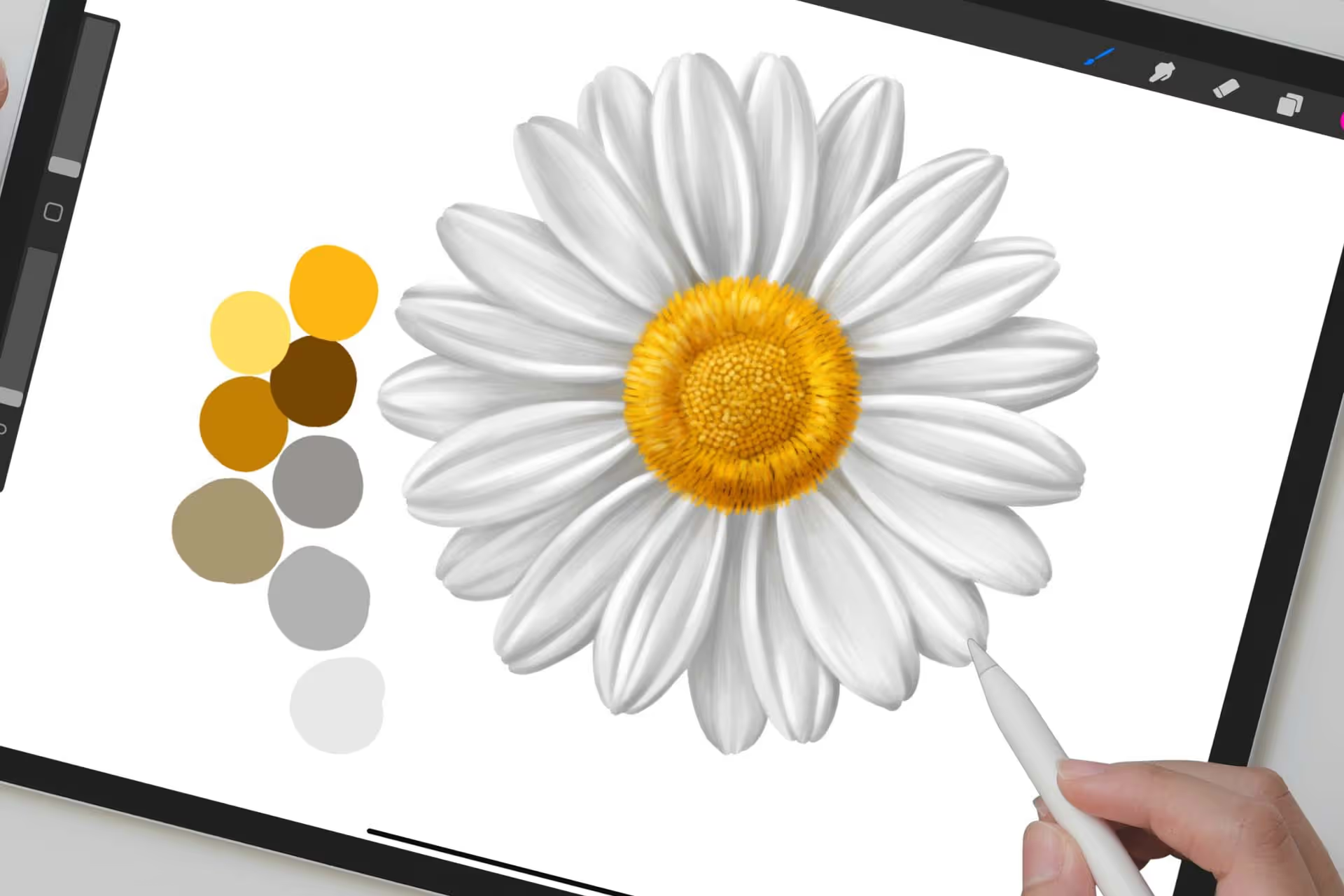
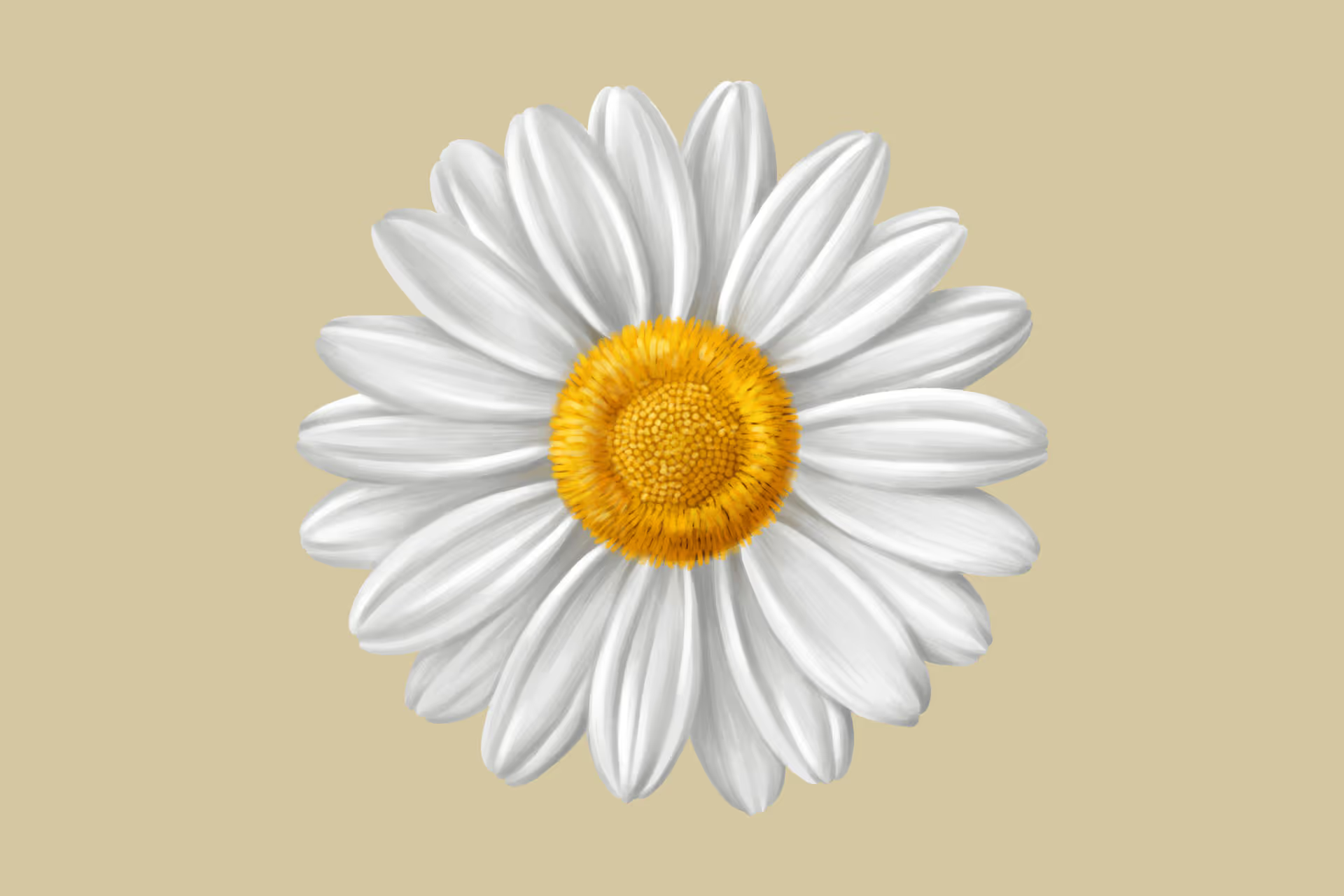
65. ✍️ Creating a Realistic Daisy – Speed Up Your Work With Symmetry

Module 7: Creative Features (2 hours 31 minutes)
Explore what makes Procreate special

Bonus 1.1: Add and Edit Text in Procreate
6:16

22:19
Bonus 1.2: ✍️ Sketch Your AR Pop-Up Lettering – “Hello, Hola, Hallo”
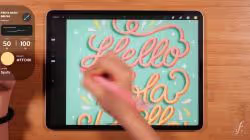
1:08:20
Bonus 1.3: ✍️ Create the Final Lettering for Your AR Pop-Up Design
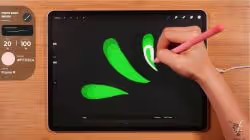
Bonus 1.4: ✍️ Create Animation Layers for Your AR Pop-Up Lettering
50:46

Bonus 1.5: ✍️ Bring Your Lettering to Life With Pop-Up AR in Procreate
4:27

Module 8: Brush Mastery (1 hour 12 minutes)
Create tools that match your artistic vision

3:05
Bonus 2.1: Get to Know Procreate’s Brushes – From Sketching to Painting

Bonus 2.2: Create a Personalized Brush Set for Your Workflow
3:36
6:11
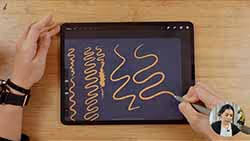
Bonus 2.3: Make Your Brushes Flow With Pressure and Smoothing

4:07
Bonus 2.4: Make Your Strokes Feel Natural – Set Up Pressure Sensitivity

3:38
Bonus 2.5: How to Use Brush Stabilization for Clean, Confident Strokes

Bonus 2.6: Dynamic Brush Scaling – Keep Your Brush Consistent
1:59

Bonus 2.7: Save Your Favorite Brush Sizes for Quick Access
2.50
0:37
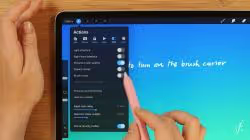
Bonus 2.8: Activate Brush Cursor for Better Accuracy

Bonus 2.9: Change the Look of Your Brush Cursor in Procreate
3:11

Bonus 2.10: Use Hover to Test Brush Size, Shape & Angle Before Drawing
3:28

Bonus 2.11: Adjust Brush Size & Opacity With Hand Gestures in Procreate
3:04
4:32
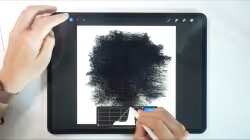
Bonus 2.12: Create Your Own Procreate Brush From Scratch
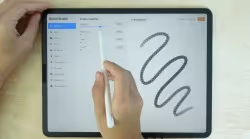
Bonus 2.13: Stroke Path Settings – Control Flow, Spacing & Smoothness
2:09

1:57
Bonus 2.14: Taper Settings – Control Stroke Start, End & Flow

Bonus 2.15: Shape Settings – Define the Look and Flow of Your Brush Tip
2:27
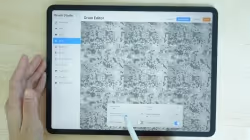
4:43
Bonus 2.16: Grain Settings – Add Texture and Flow to Your Brush Strokes

Bonus 2.17: Rendering Settings – Control How Your Brush Reacts
2:28
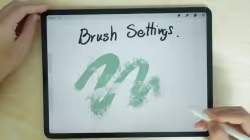
3:45
Bonus 2.18: Wet Mix Settings – Control How Your Brush Blends Like Paint

Bonus 2.19: Color Dynamics Settings – Add Hue, Saturation & Randomness
to Your Strokes
4:00

1:07
Bonus 2.20: Dynamics Settings – Control Speed, Jitter, and Motion in Your Strokes

Bonus 2.21: Apple Pencil Settings – Control Pressure, Tilt & Brush Response
3:14

2:19
Bonus 2.22: Properties Settings – Set Brush Limits, Size,
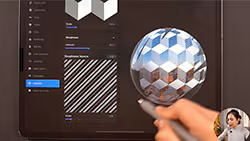
Bonus 2.23: Materials Settings – Control the Feel of Your Brush on 3D Surfaces
6:44

1:28
Bonus 2.24: About This Brush – Add Info, Sign Your Brush & Lock Settings

Module 9: Future Skills (10 minutes)
Stay ahead with cutting-edge features

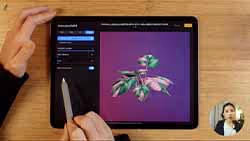
Bonus 3.1: How to Import a 3D Model into Procreate
3:37

1:35
Bonus 3.2: Understanding 3D Mode and 2D View – Paint From All Angles

3:25
Bonus 3.3: Set the Scene – Customize 3D Lighting and Environment

1:25
Bonus 3.4: See Your 3D Art in the Real World With AR View
1:52
Bonus 3.5: Create a 3D Art Showcase Video in Procreate
Module 10: Welcome to Your Style Adventure
Jump right into your creative journey!
Download all your course goodies and join our amazing Facebook community where artists share wins, ask questions, and cheer each other on. It's like having your own personal art club!
What's Inside:
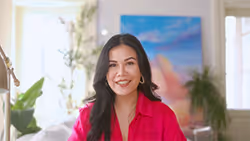
Quick welcome & course overview
6:38
All your essential files ready to download
VIP access to our supportive Facebook group
Module 11: Find Your Style (The Fun Way!)
Finally answer: "What's MY art style?"
Stop wondering and start discovering! This isn't about copying someone else. It's about uncovering what makes YOUR art feel like home.
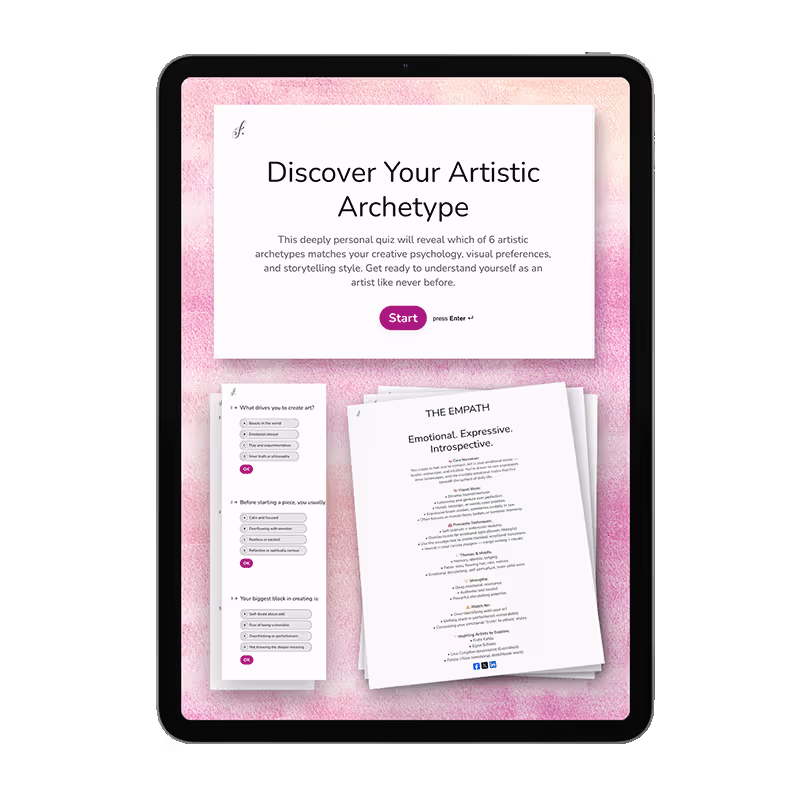
Take our fun quiz, explore your creative personality, and get closer to that "aha!" moment when you realize what makes your art uniquely yours.
What's Inside:
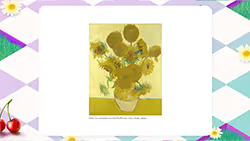
8:34
Find Your Style
Style Quiz
Perfect for: Anyone who's ever thought "I wish I knew what my style was!"
Module 12: Make Art in 4 different art styles like watercolor
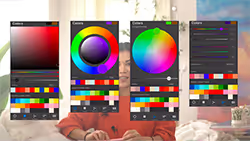
Learn how to choose colors, then try 4 different techniques to see what clicks
This is where the magic happens! Think of it as your personal art playground. You'll explore essential color secrets, then dive into 4 completely different styles - from trendy screen prints to rich oil textures to dreamy watercolors. No pressure, just pure experimentation!
What's Inside:
16:19
Color Theory Made Simple
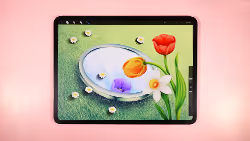
Trendy Flower Prints
2:41:09
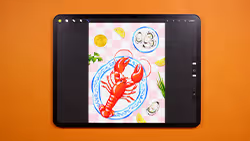
2:44:48
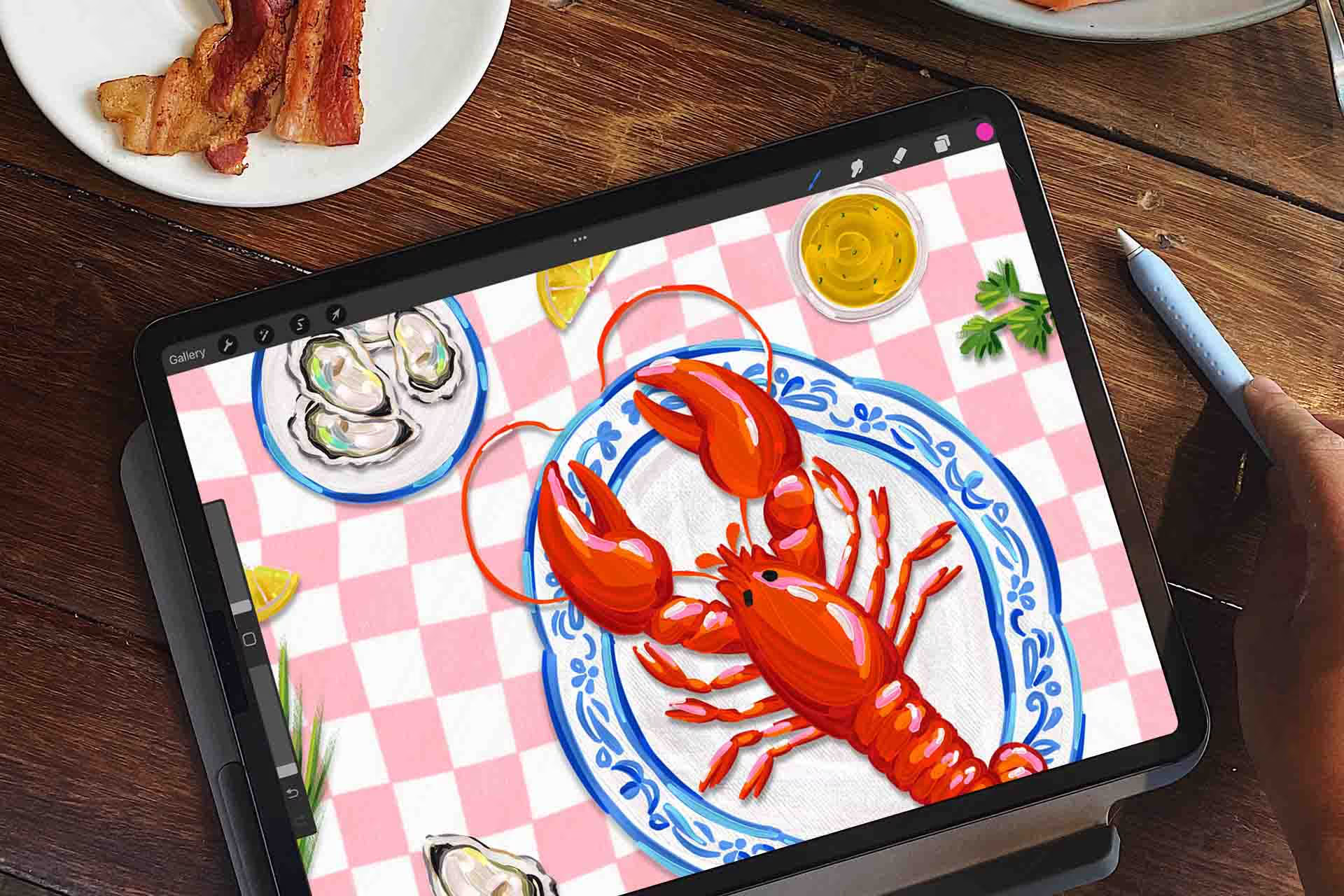
Rich Lobster Platter

6:14:48
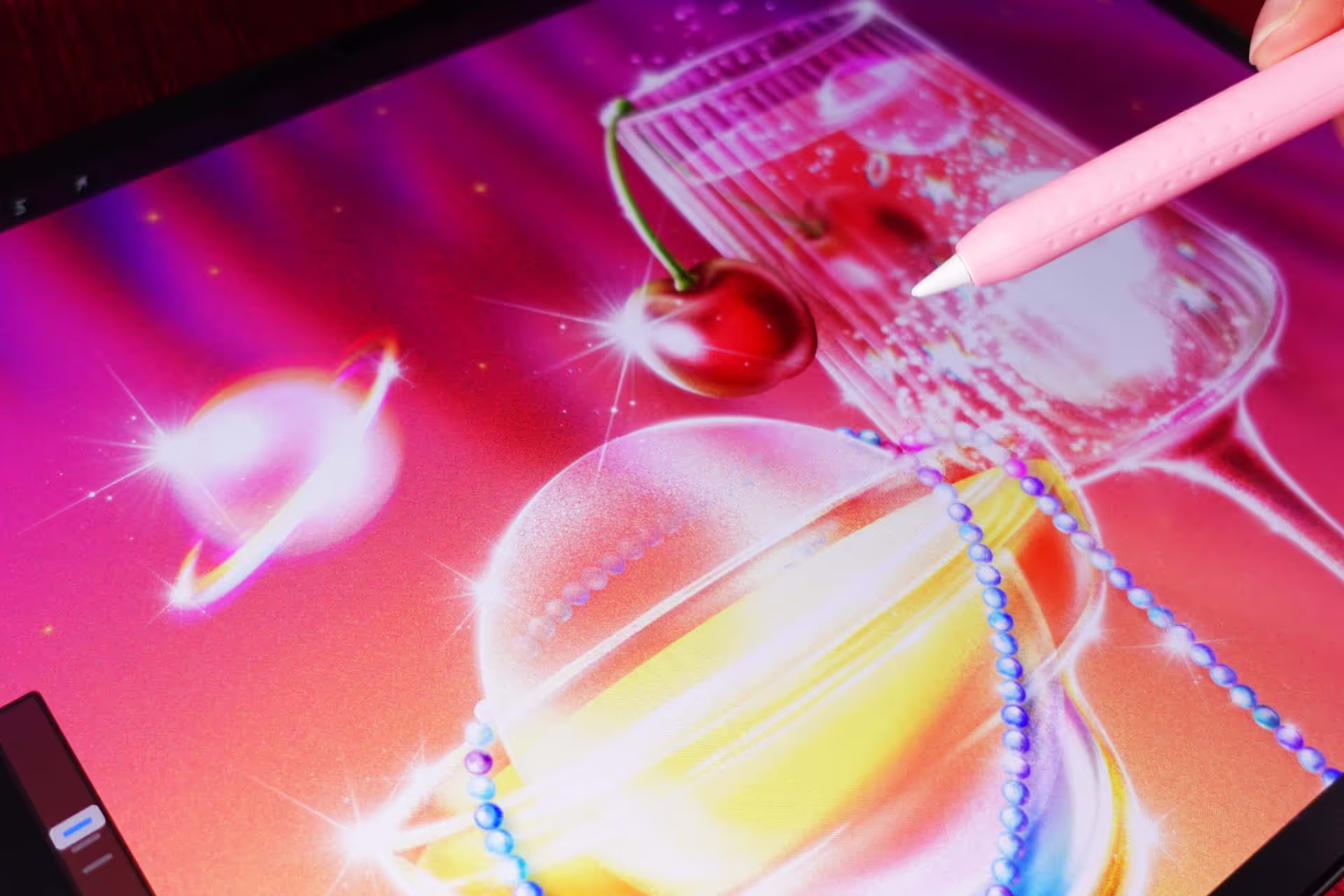
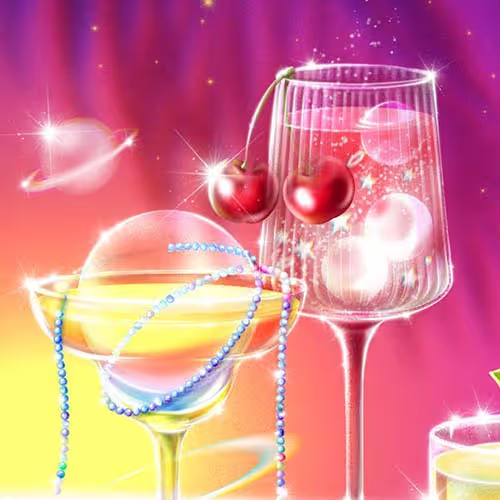
Shimmery Cocktail
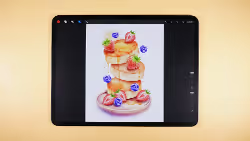
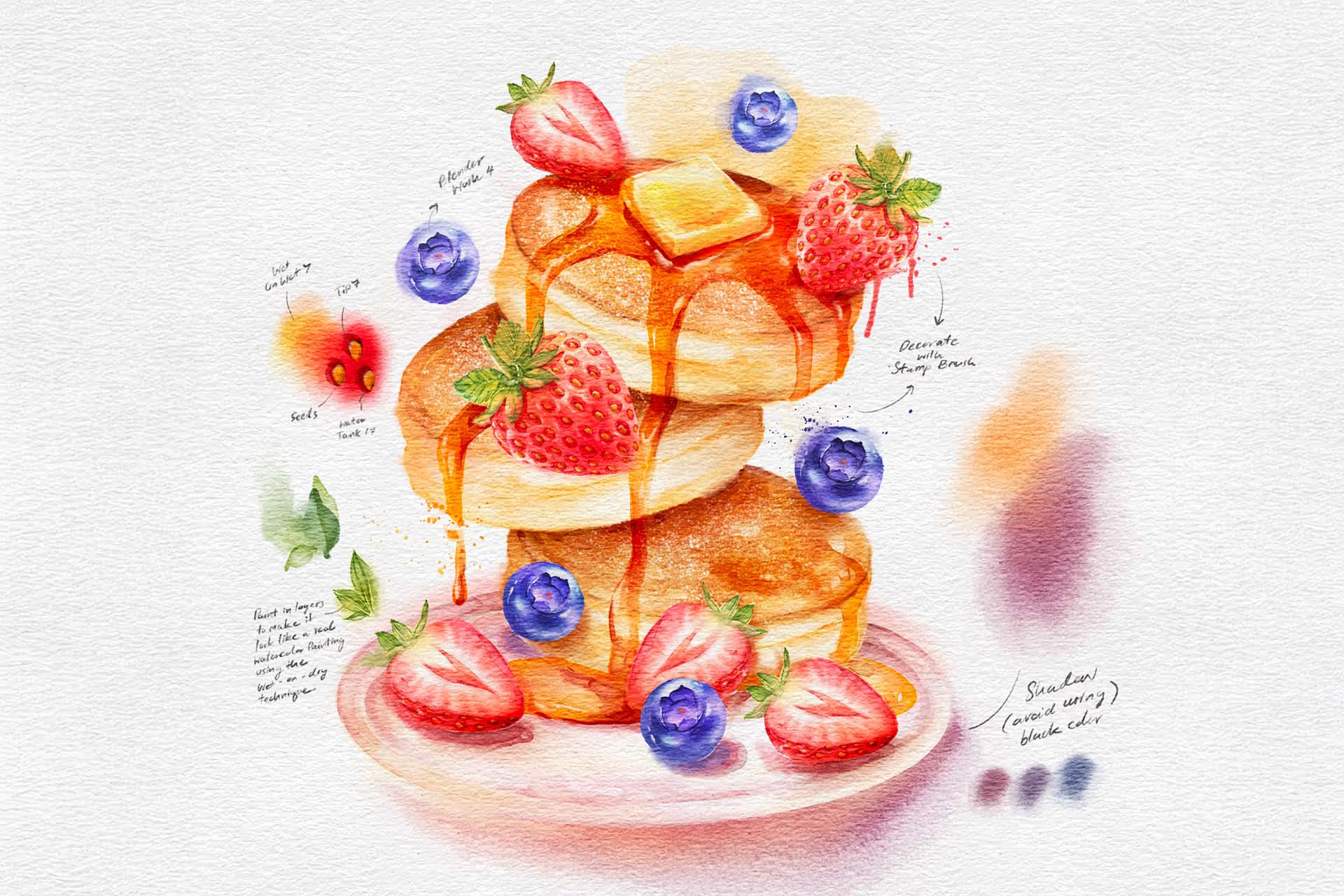
Watercolor Pancake & Berries
3:41:05
Perfect for: Artists ready to break out of their comfort zone and try something new

Module 13: Composition & Characters - Make It All Come Together
Learn where to put things so your art looks amazing!
Now that you've tried different styles, let's make them shine! Discover the secrets of placing elements so your art feels balanced and tells a story. Practice with 4 exciting projects that bring your new skills together beautifully.
What's Inside:
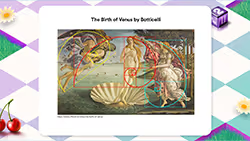
10:53
Where to Put Things
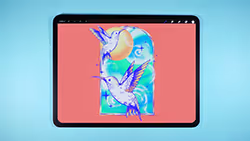
Inking Hummingbird
57:00
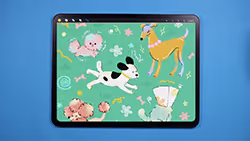
1:31:25
Adorable Dog Patterns
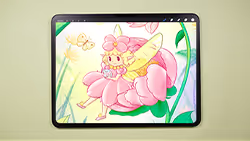
4:21:35
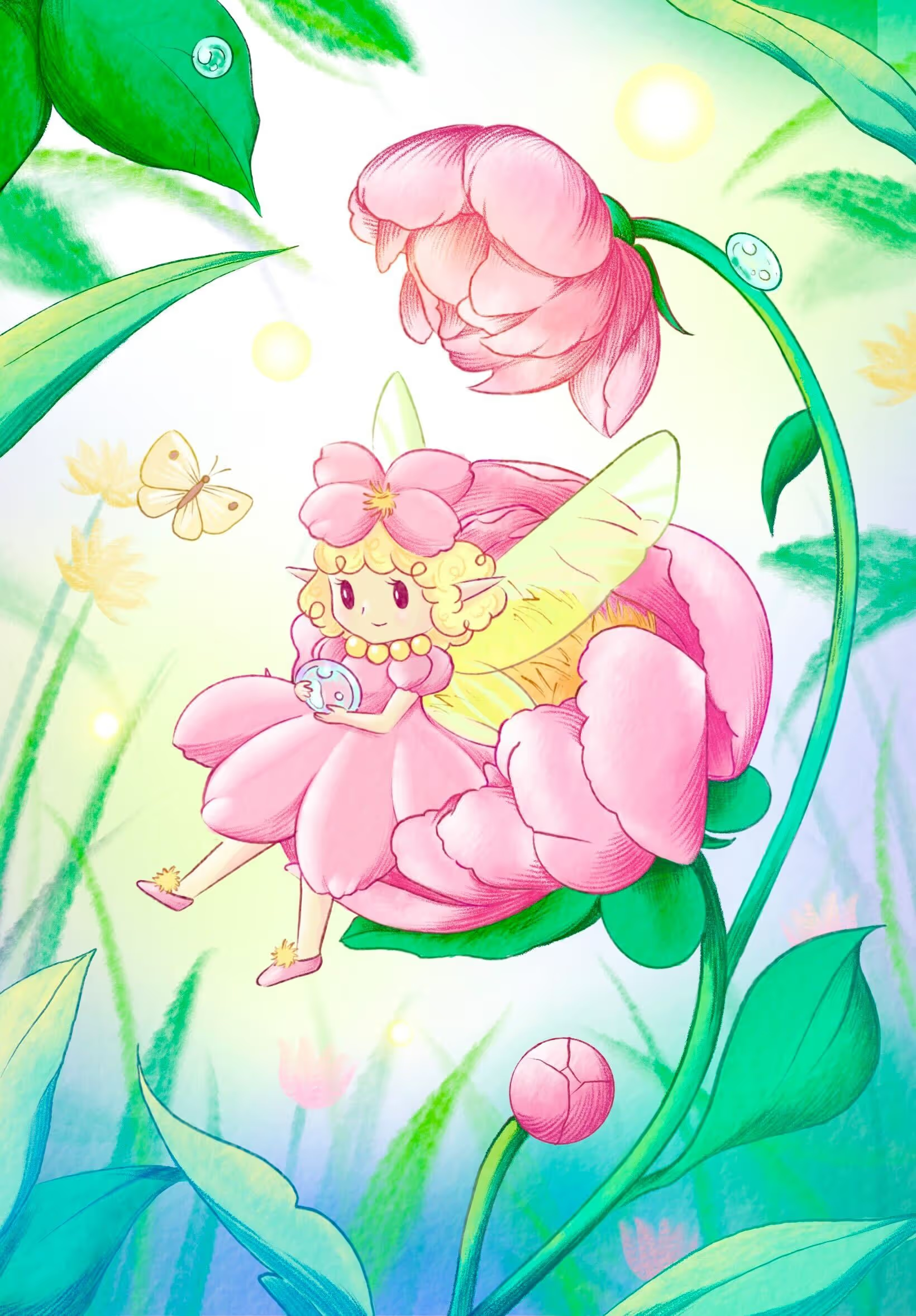
Children’s Book Peony Fairy
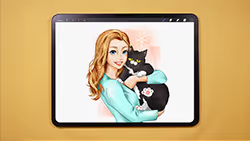
Fun Comic Portraits
3:13:40
Perfect for: Artists ready to create complete, polished artwork that makes people say "Wow!"
Get 2 Free Lessons
Before you decide, you can get these two lessons for free and see how easy it is to follow along. You'll also get free brushes as a gift.


You don’t just get the course!
By enrolling in the Masterclass, you get full lifetime access to over 40 hours of on-demand video you can play on any device with a web browser (including mobile!). Upon completion, you’re granted a special Certificate of Completion, which you can show off in your resume.
Don't Take My Word for It.
Take Theirs.
You know what's more convincing than my portfolio? Seeing what you could actually create. These are real students who started exactly where you are right now.
30-Day Instant Refund
If you follow my process, you will see results and I’ll back that with a 30-day instant refund guarantee.
Masterclass for Procreate 2.0
13 Modules, 112 Lessons, 43 Hours of in-depth video lectures
%201%20photo%20of%20all%20hero%20image%20-%20Compressed.avif)
Lifetime access and updates
Finish with 30+ art project of your own
A custom brush set for drawing floral designs
30-day money back guarantee
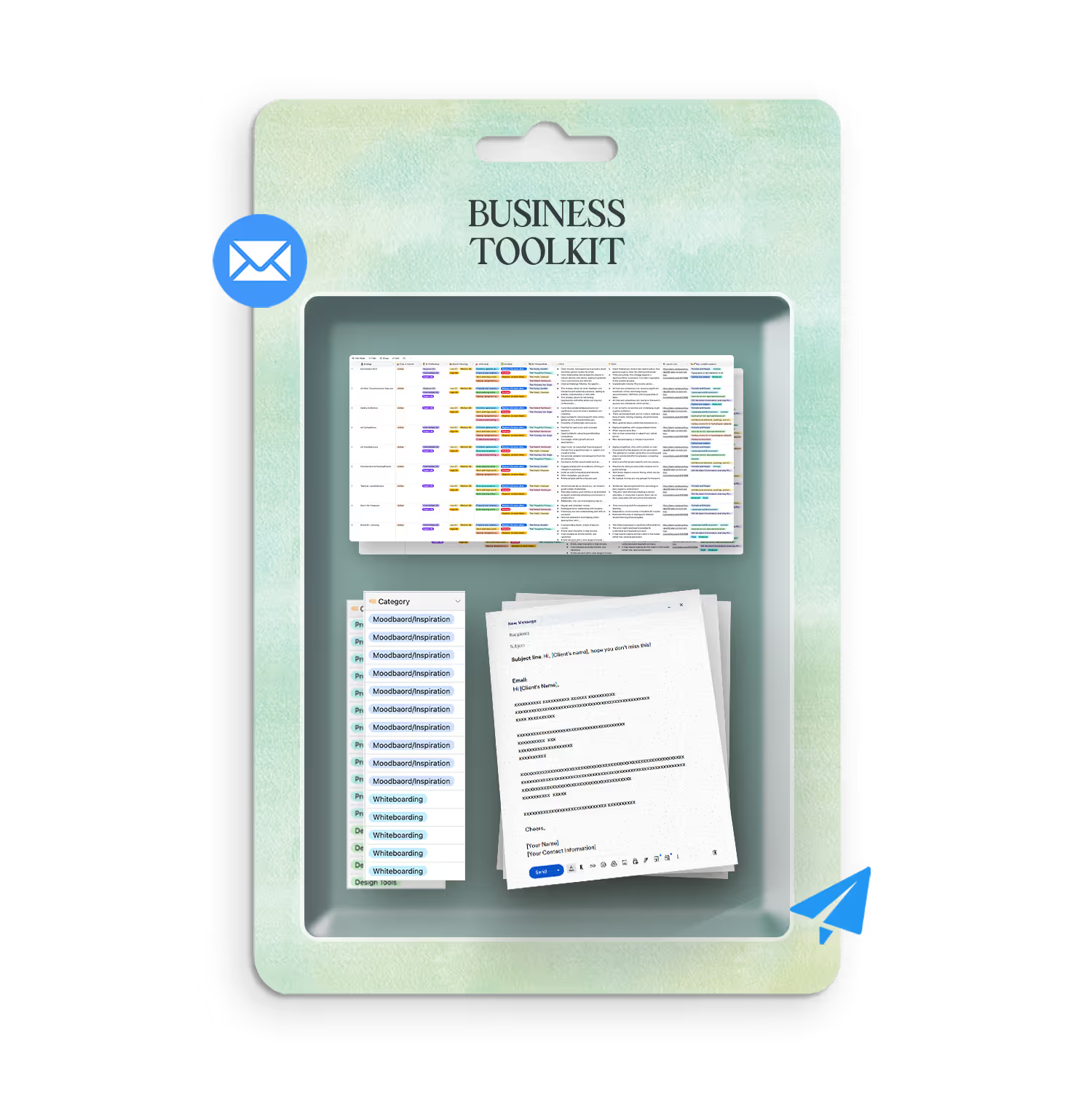
With below add-ons to help you. Included for free.
Special Black Friday Offer
Is only avaliable for another:




FAQs
Find answers to common questions about this and other courses
No. These courses start from the beginning. If you can hold an Apple Pencil, you can follow along. The only requirement is Procreate installed on your iPad. Some are little bit more advanced, but if you follow along you can still make amazing progresses an an artist.
Any iPad after released after 2018 will run Procreate perfectly!
Yes, Procreate works best with an Apple Pencil that supports pressure sensitivity (1st Gen, 2nd Gen, or Pro — not the basic USB-C model) to achieve variable line weight and opacity.
Depends on your pace. The videos total anywhere from 10-20 hours, but most students spend 2-3x that actually drawing along. Lifetime access means no pressure. Finish in a weekend or spread it over months.
Yes, but you'll want your iPad open to follow along. Most students watch the lesson on their iPad, then rewind and draw. Some use a second device to watch while drawing.
Post in the private Facebook group. I'm in there regularly, along with thousands of other students. You'll get answers within hours, not days.
No. This is one time purchase and it's your forever.
Still have questions?
I'm here to help! Whether you need technical support, want to know more about specific courses, or just want to chat about your artistic goals, you can reach out anytime.
80,000+ students across the globe
Real feedback from course graduates
