How to Import Swatches to Procreate
Easily import your favorite color swatches into Procreate! This guide shows you two simple ways to get your palettes organized.

Do you have a favorite color scheme or collection of colors that have a special meaning?
Swatches can help you keep color palettes organized and make your design process easier. They're also fun to collect!
If you're like me, sometimes it's easier to use swatches and palettes in your artwork instead of looking up colors by hex codes. But if you've ever downloaded a swatch file, you may have wondered how to import it into Procreate. Fortunately, doing just that is fairly simple and easy!
No matter what type of swatches you're using, Procreate makes importing and using them easy. We'll show you how to do it below!
Importing Swatches to Procreate
In this tutorial, I’ll teach you the two different ways we can import your swatches.
Drag and Drop
Just like the other files we use in Procreate, we can also simply drag and drop our swatch files into Procreate.
First, open your swatch files’ folder location.
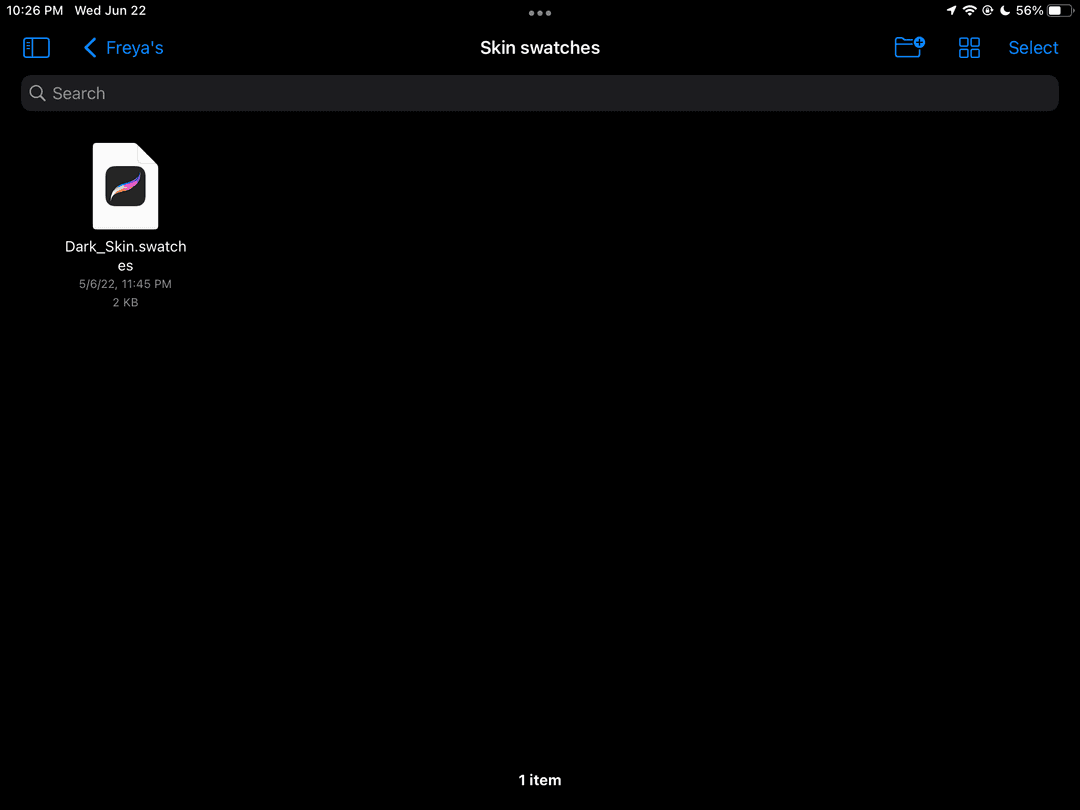
Now open Procreate in Split View.
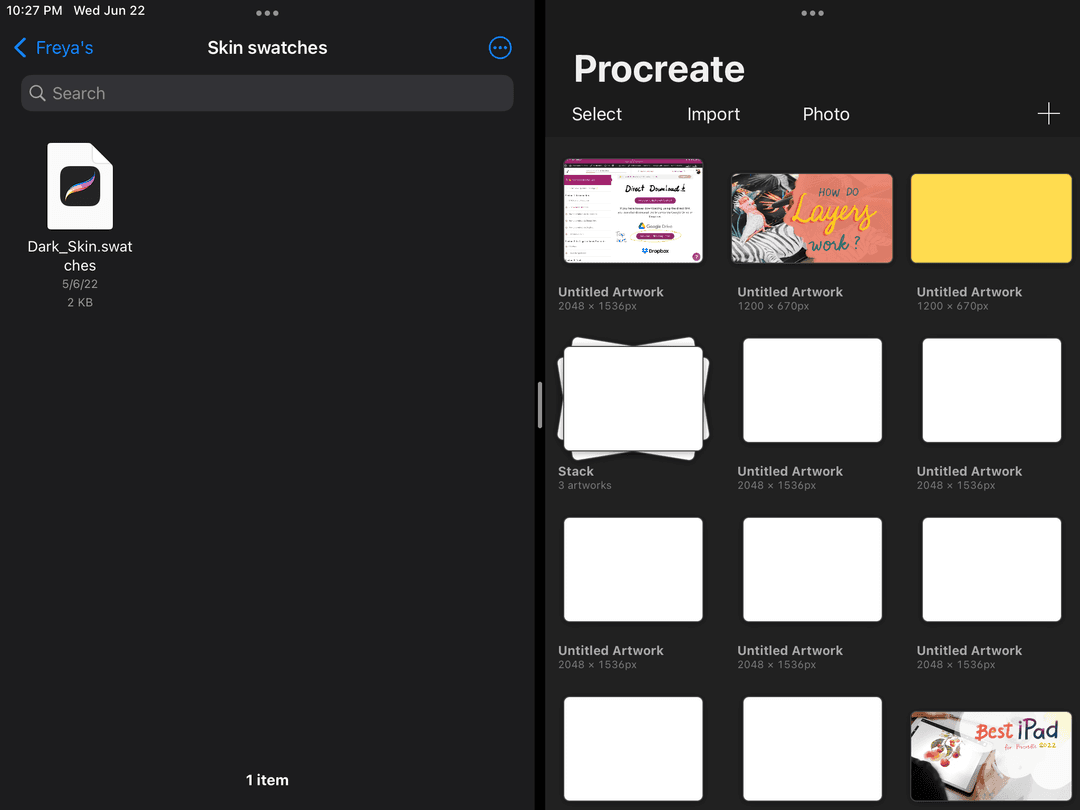
Open one of your works or create new artwork.
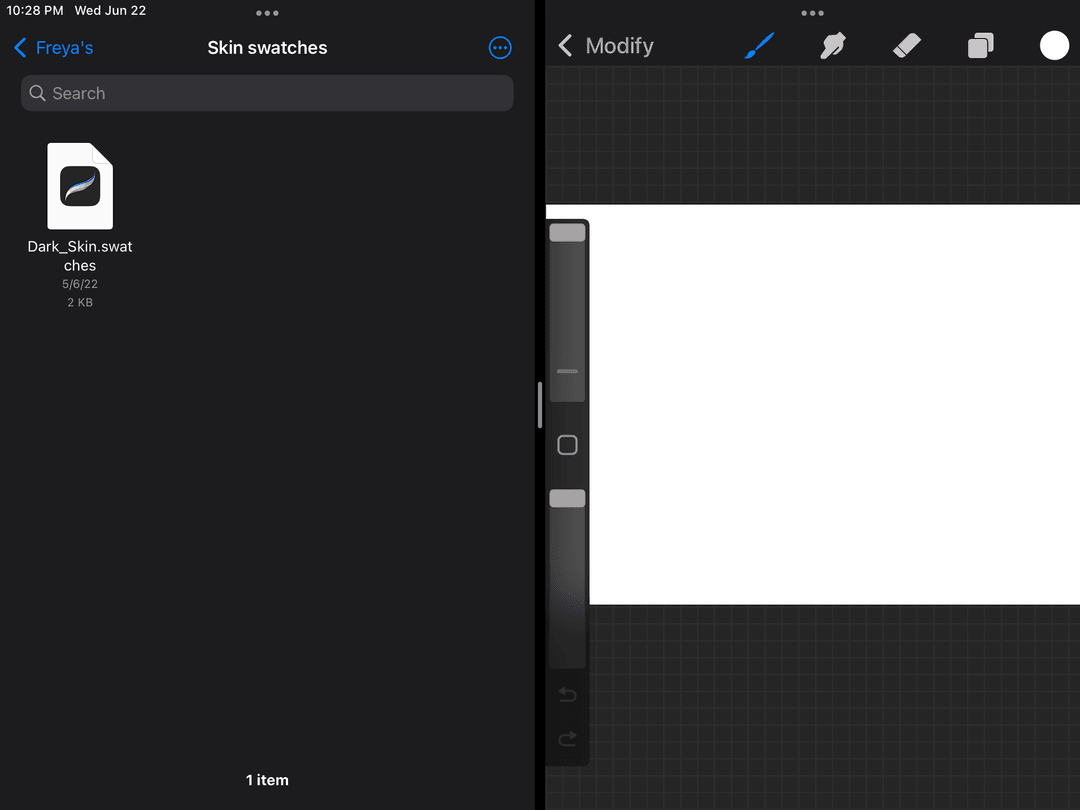
Tap on the circle at the upper right corner of your workspace to open the Colors menu.
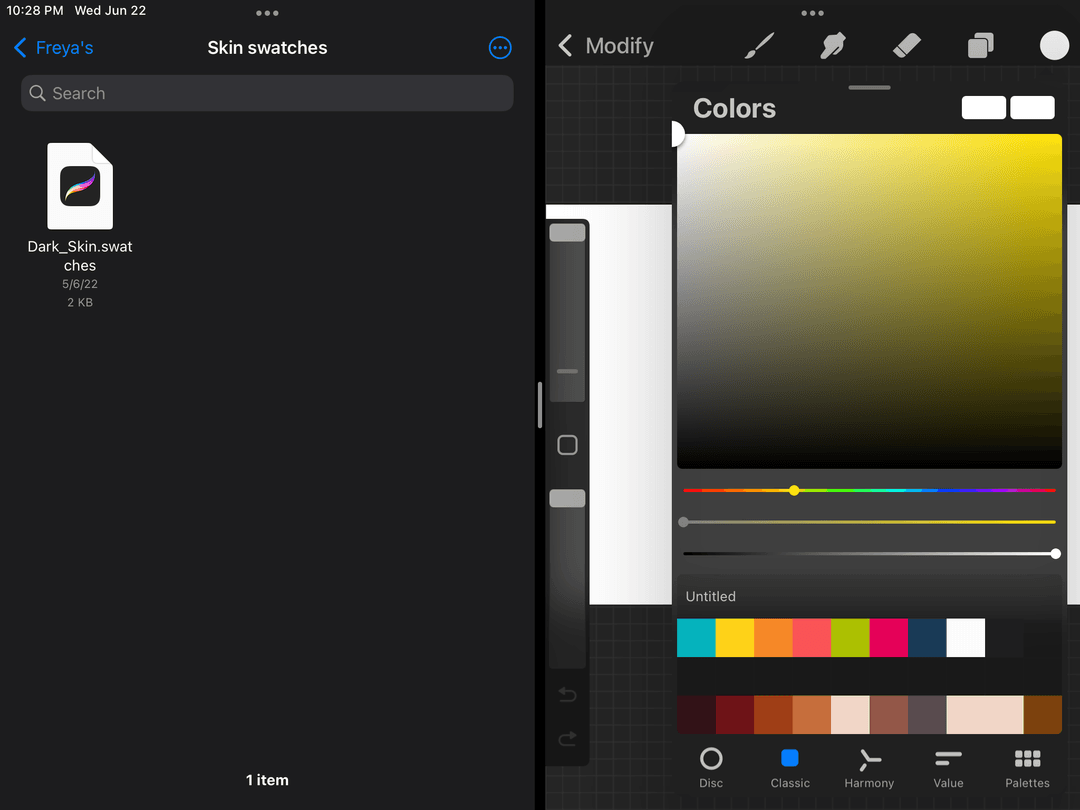
Go to ‘Palettes’
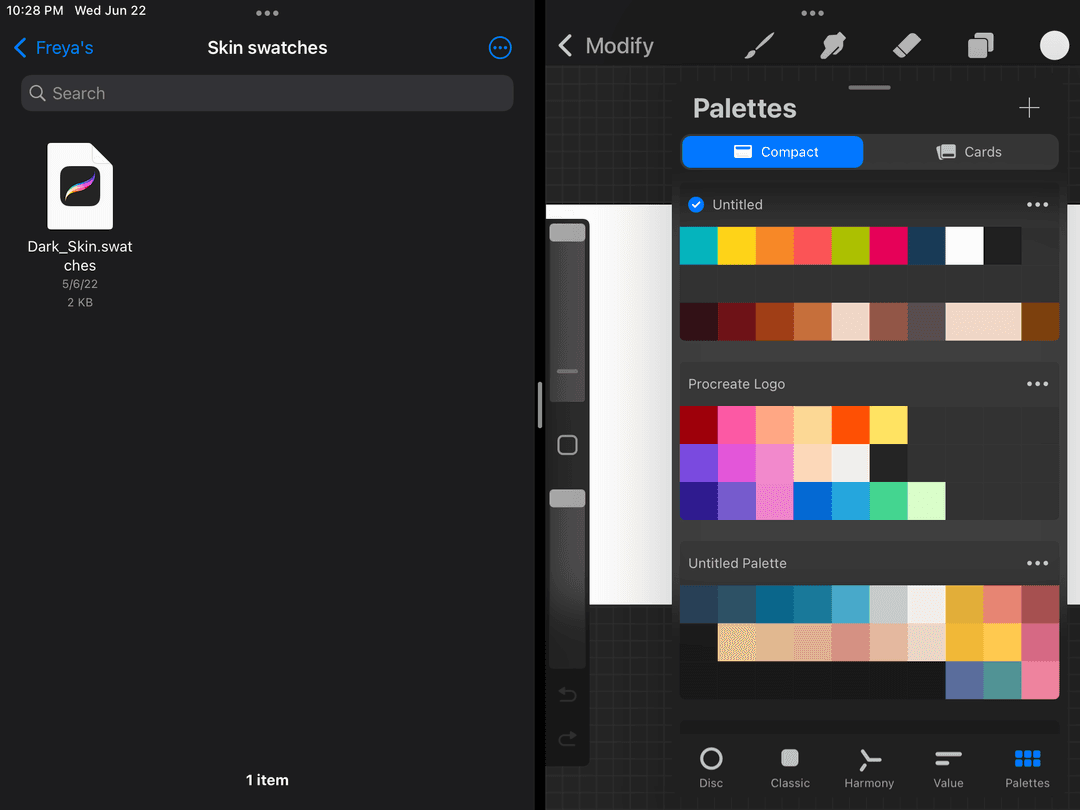
Now, drag and drop your swatch file to the color palettes. You’ll see a green ‘+’ sign when you are in a space where you can drop the files.
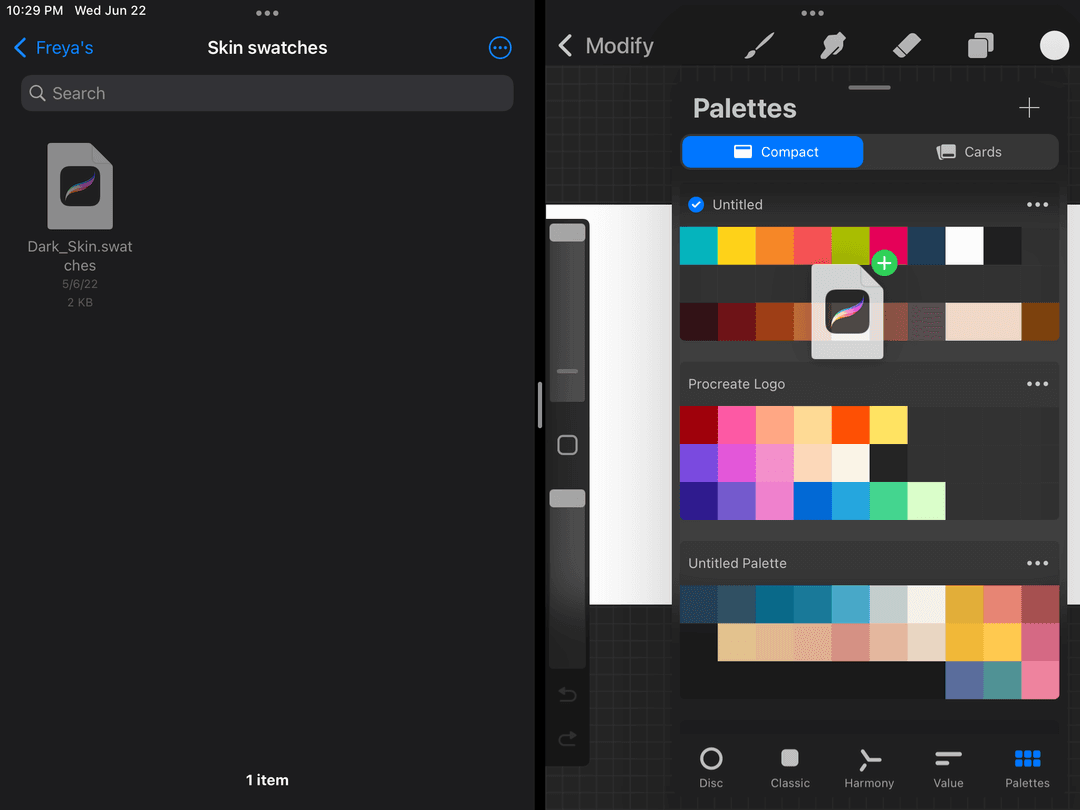
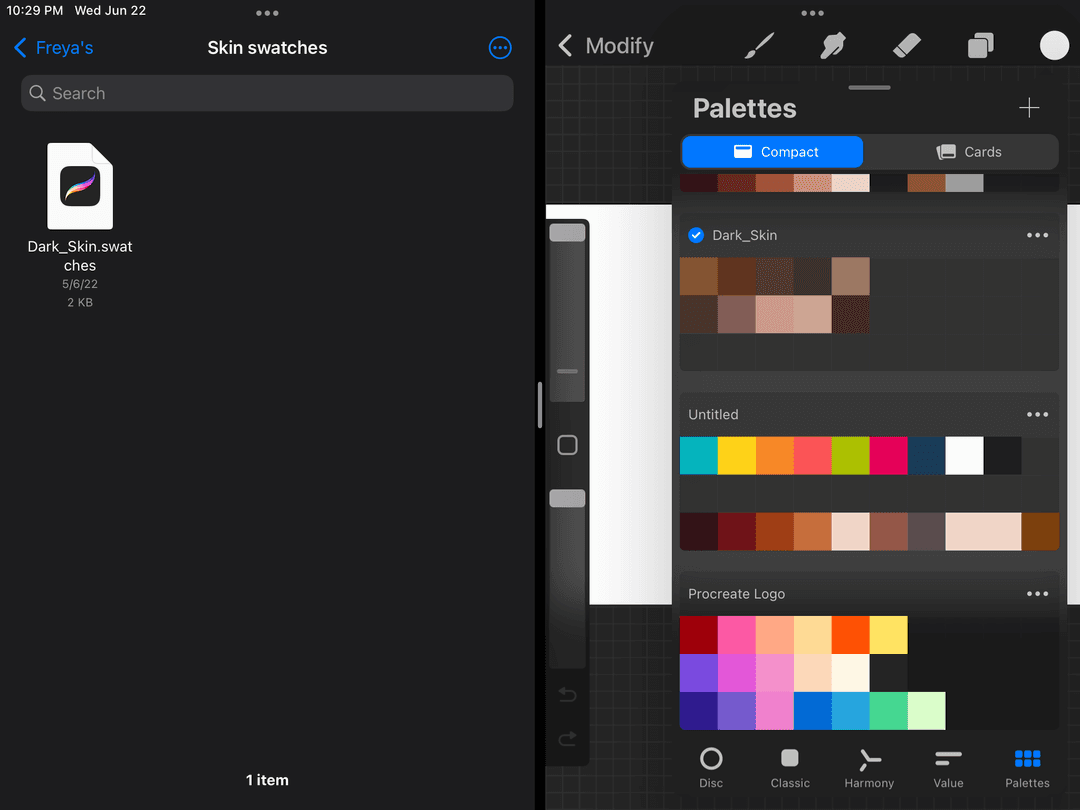
Release the swatch and let it join the other swatches. You’ll see it in your palettes and you’ll be able to use it anytime.
Using the Colors Menu
Aside from the drag and drop method, we can also import the swatches using the import feature in the Colors Menu.
Just like always, open an Artwork in Procreate.
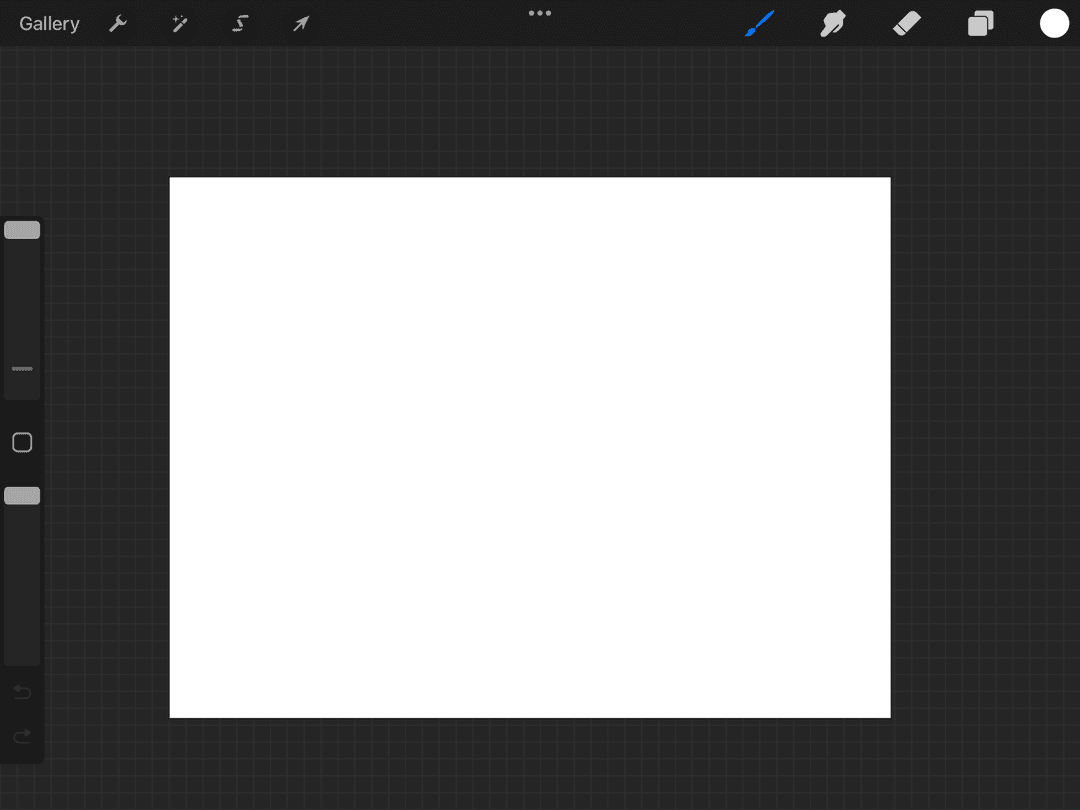
Tap on the circle at the upper right corner to open the Colors Menu.
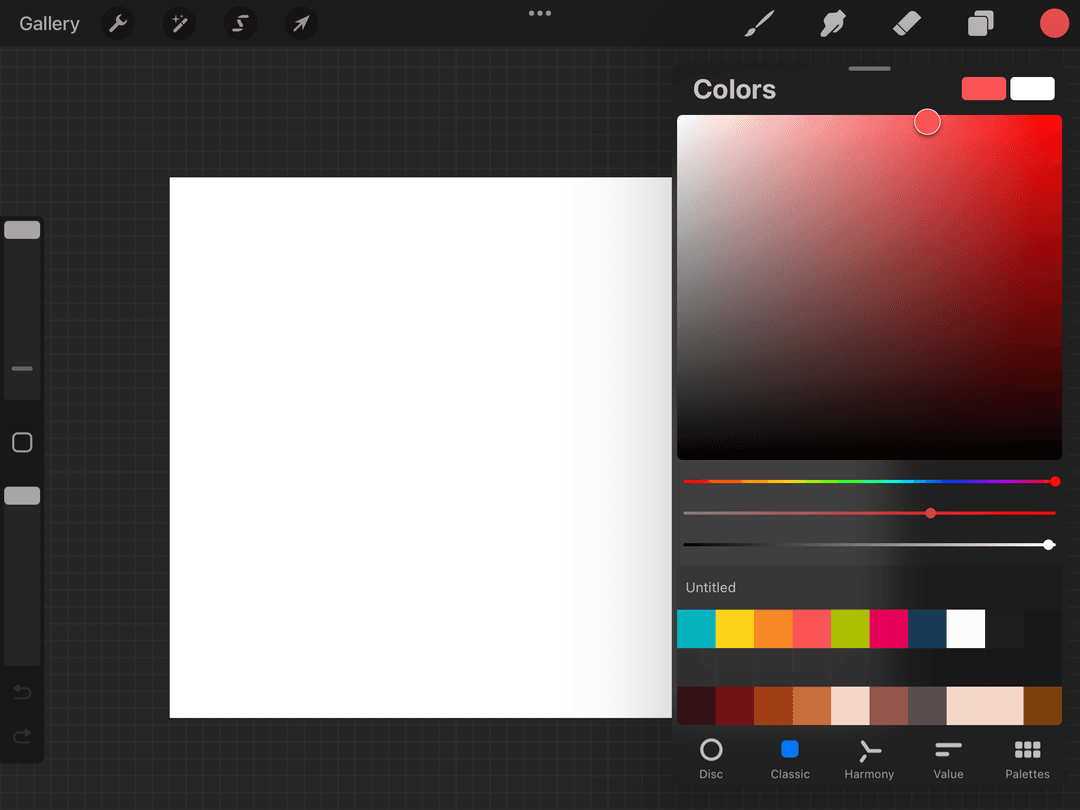
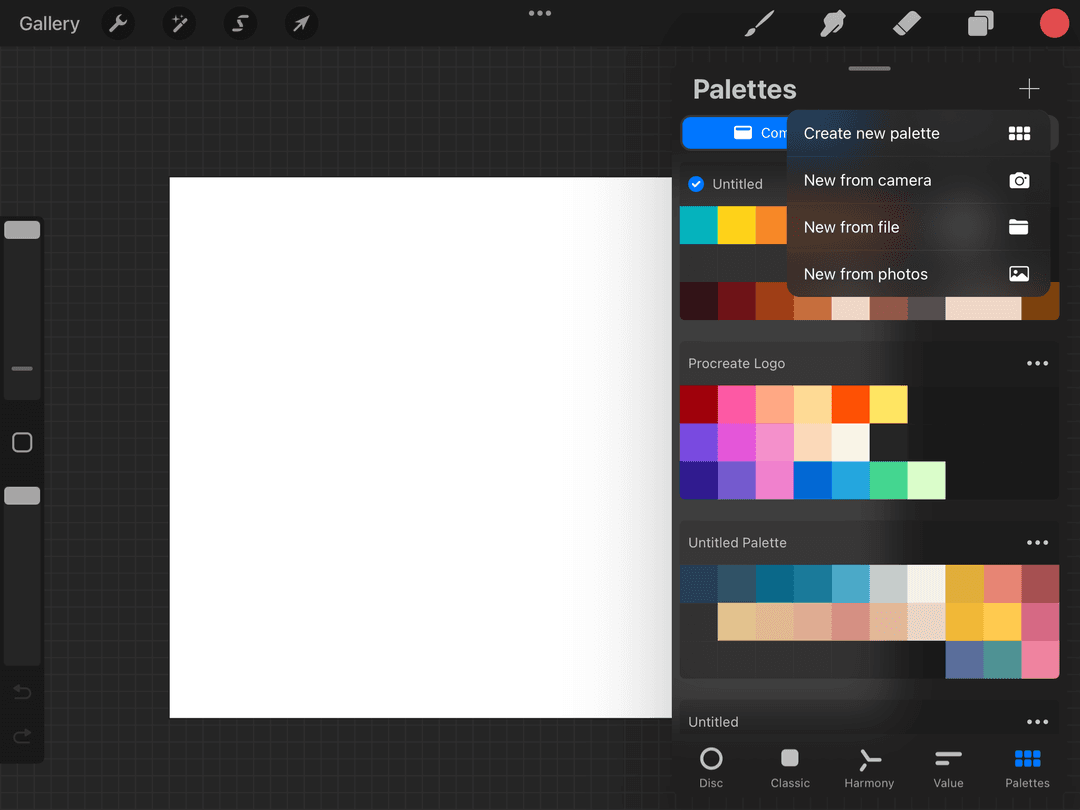
Go to ‘Palettes’ and tap on the ‘+’ at the corner.
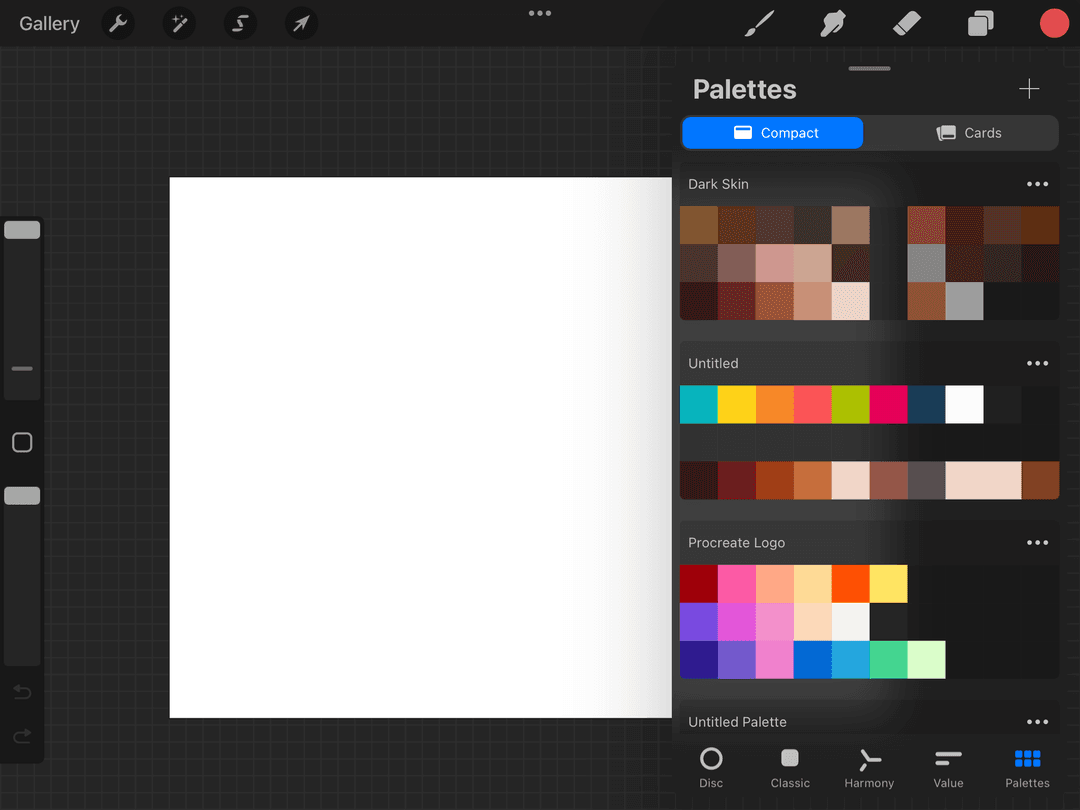
Choose ‘New from file’ and locate your swatch file.
Tap on your swatch file and watch as it is added to your palettes.
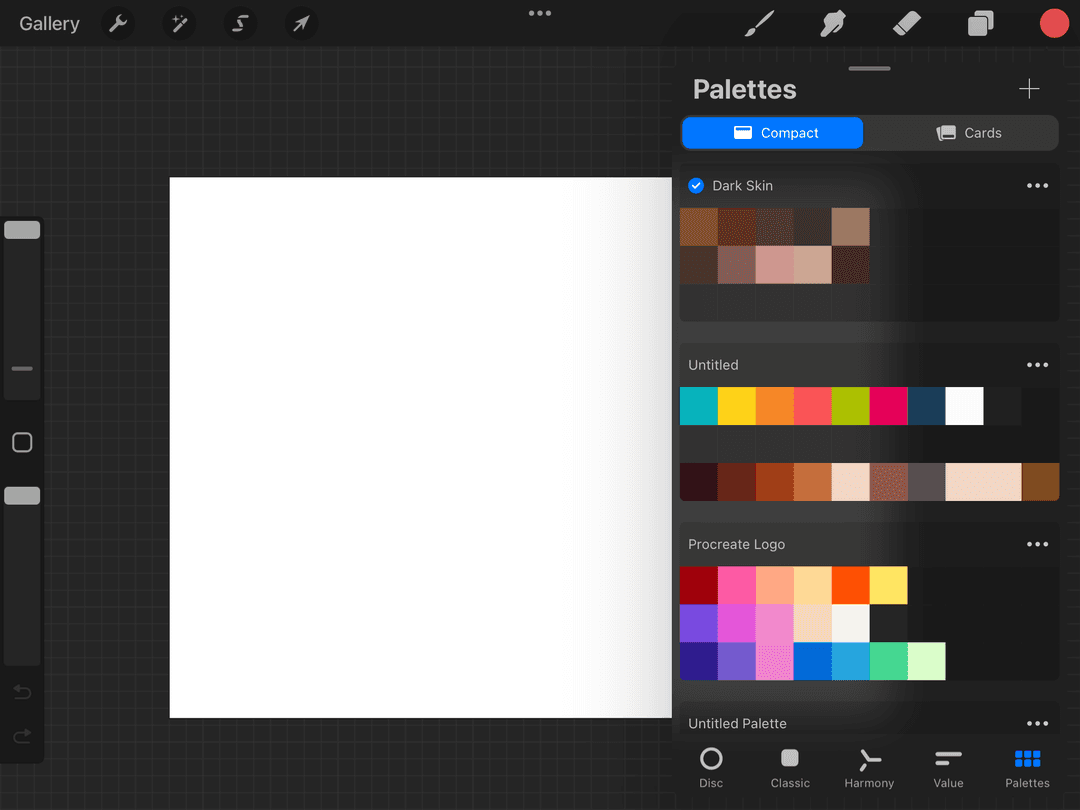
There you have it! Importing swatches in Procreate is easy and intuitive, and best of all it requires no third-party apps. Keep in mind that these steps will work with any file type supported by Procreate, not just the one shown here.
Now you can get started with creating stunning artwork by choosing your favorite color palettes to use.
Do you have any other tips for working with swatches? Share them with us on Facebook or Instagram!
Try two real lessons from Masterclass for Procreate, free
Not a trailer. Actual lessons from the course. After you confirm your email, they open in Freya Studio and stay yours.
Halftone Tulip
The complete lesson, not a preview
Porcelain Plate Oil Painting
The complete lesson, not a preview
- Yours after email confirmation
- No card, no trial
- Opens in Freya Studio