

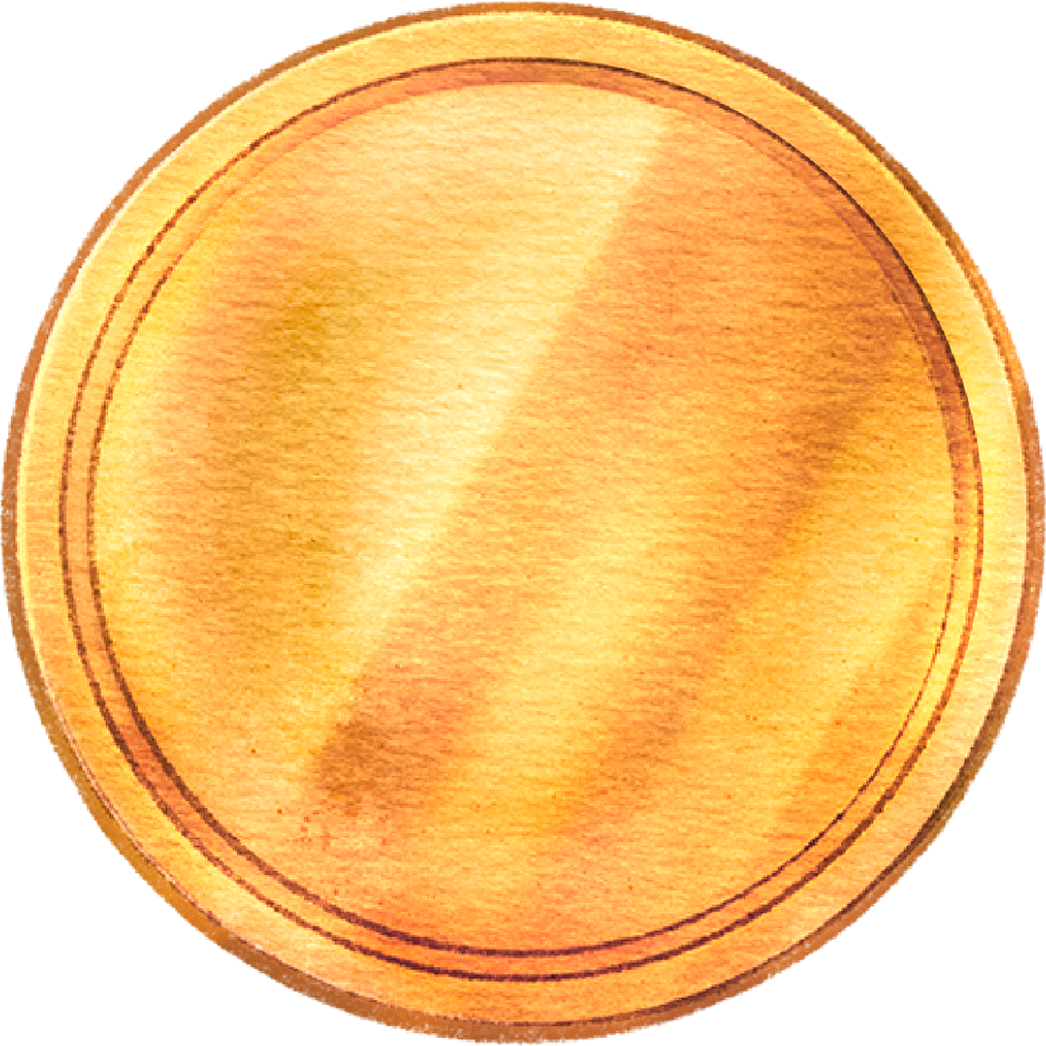
In this tutorial, you’ll learn how to animate a simple coin flip in Procreate Dreams.
Make sure you have the Procreate Dreams app installed on your iPad before starting. You can also download the coin PNG file I prepared to follow along easily.
This step-by-step guide is beginner-friendly—you’ll shape the flip with stretch & squash, add floating movement, and enhance depth frame-by-frame. Let’s start animating!
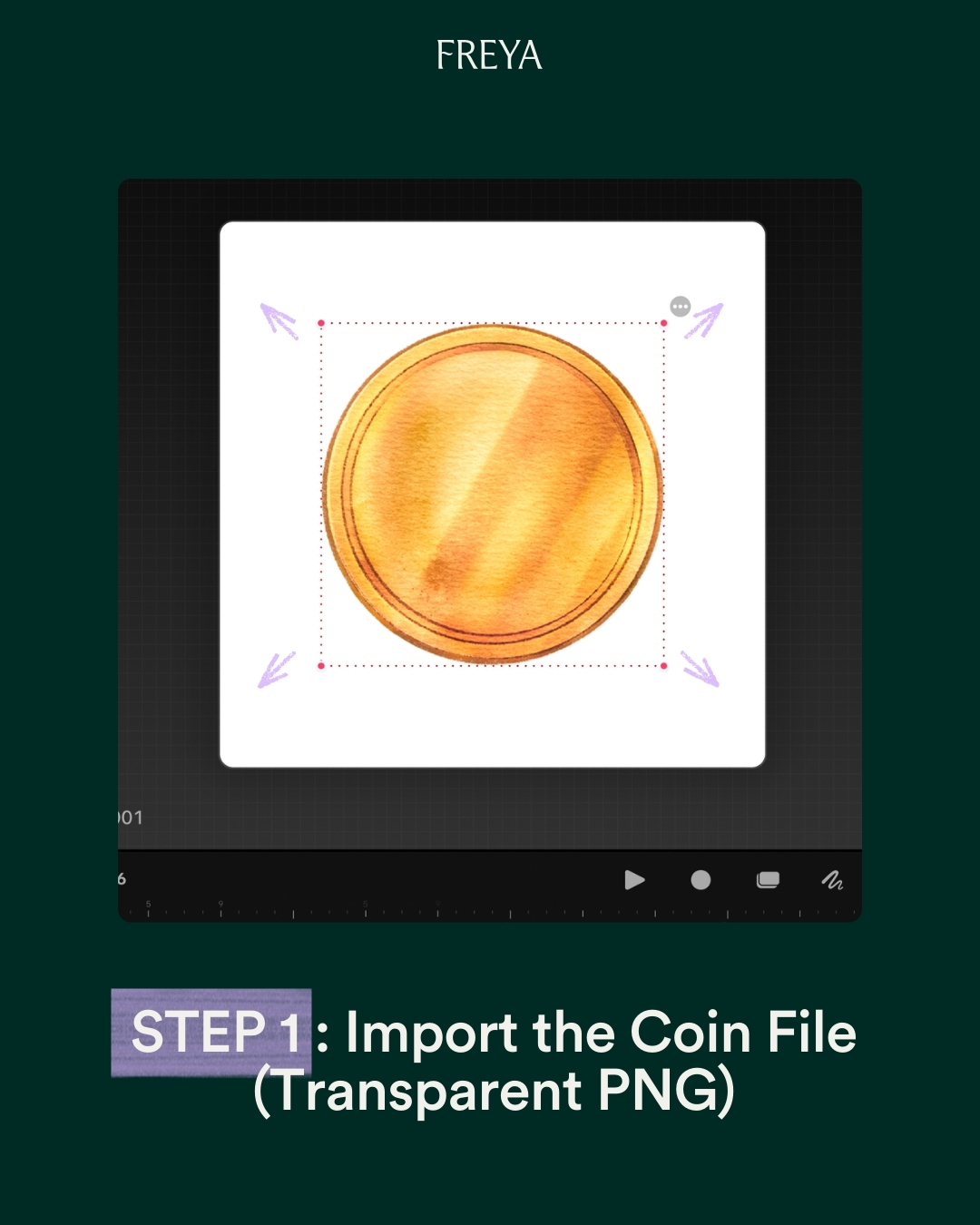
Step 1: Import the Coin File (Transparent PNG)
Create a new movie in square size, then tap the “+” icon on the Timeline to add a new track. Import your transparent PNG coin file, place it in the center, and adjust the size with the Transform handles.
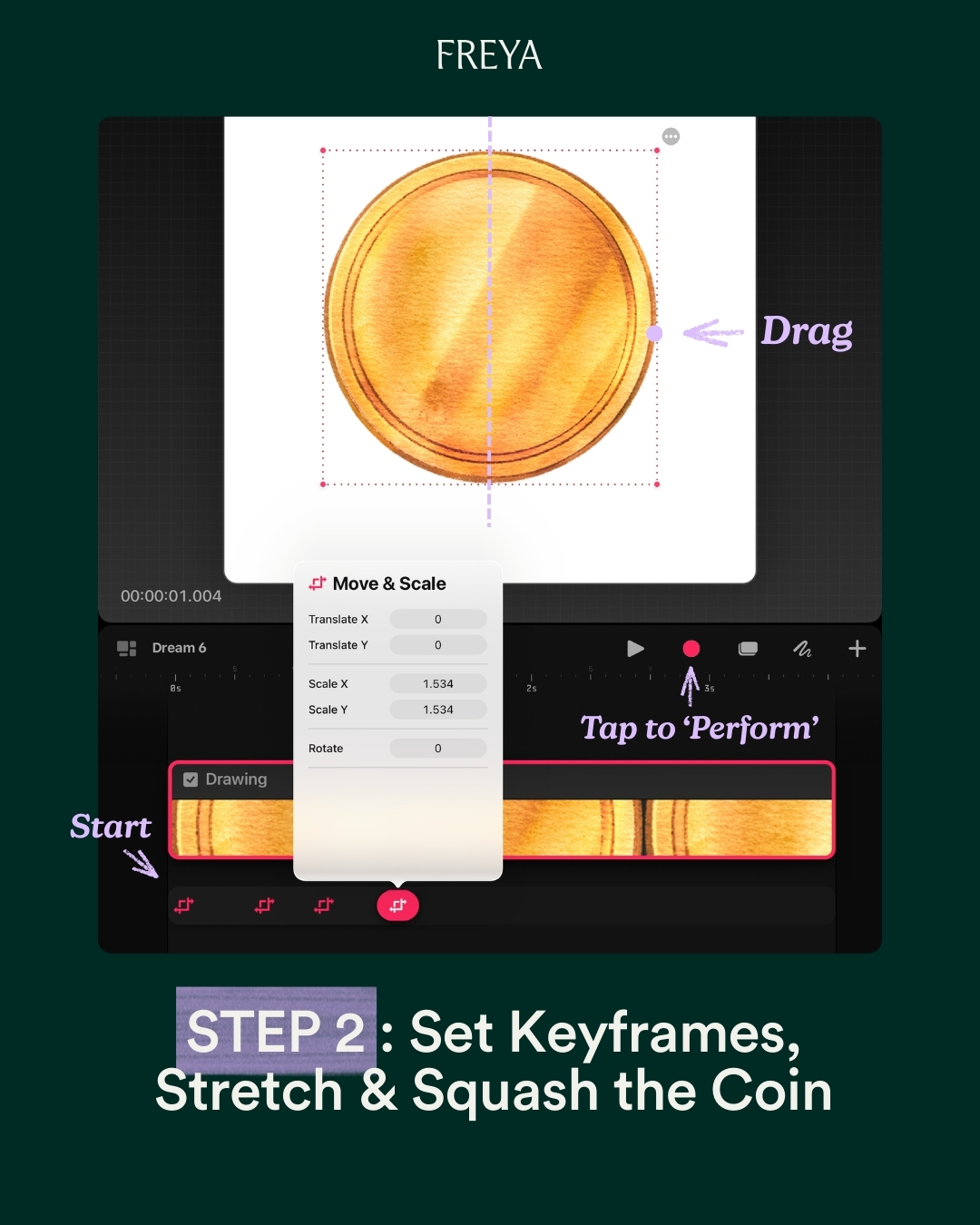
Step 2: Set Keyframes, Stretch & Squash the Coin
Tap the coin layer on the Timeline and move the Playhead to the starting frame. Open the Action! menu, choose Move → Move and Scale. Tap Perform to enable automatic keyframing. Gently stretch the coin vertically to create a 3D flipping illusion, then tap Stop when done.
After that, move the Playhead to the last frame and adjust the scale to match the starting keyframe for a seamless loop.

Step 3: Perform the Floating Movement
Move the playhead back to the starting frame and tap Perform again.
Gently move the coin up and down to create a floating motion while it flips, then tap Stop to finish the vertical movement.
After that, adjust the last keyframe so its value matches the starting frame. Also check each keyframe to ensure Translate X is set to 0 for a clean, centered motion.
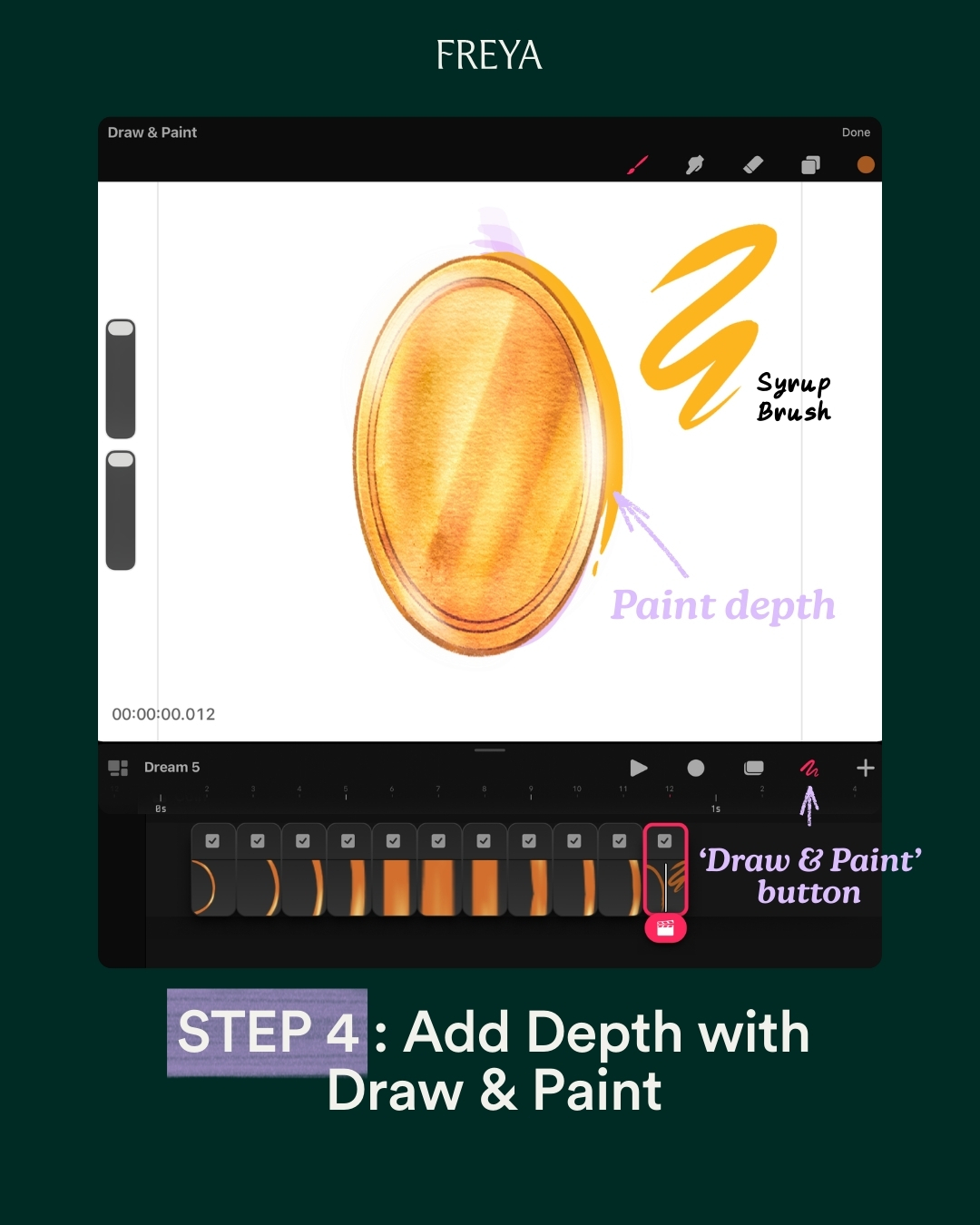
Step 4: Add Depth with Draw & Paint
Tap the Draw & Paint button on the Timeline to enter drawing mode.
Use your brush to paint thickness on each frame to enhance the coin’s depth as it flips. (I used the Syrup Brush from the app.) Keep the strokes lighter when the coin comes toward the front for a smoother look.

Step 5: Set the Playback Mode to Loop
Switch the playback mode to Loop so your flip plays smoothly.
You can adjust the timing, add effects, paint more details, or try animating other objects to keep practicing.
And that’s it! You’ve created a smooth coin flip animation in Procreate Dreams.
Hope you enjoy it! ✨
See courses that go much more in depth
Discover tips and tricks for Procreate enthusiasts.
Masterclass for Procreate 2.0

Pet Portrait Purrfection
