How to Draw a Luna Moth on Procreate
Draw a beautiful luna moth in Procreate! This step-by-step tutorial uses free sampler brushes to create stunning watercolor effects.
Grab the free brush for this tutorial
Made by Freya · works in any Procreate version
Hello and welcome to this free drawing tutorial using the sampler brushes from my Ultimate Watercolor Brush Set. Please download the files first before we begin.
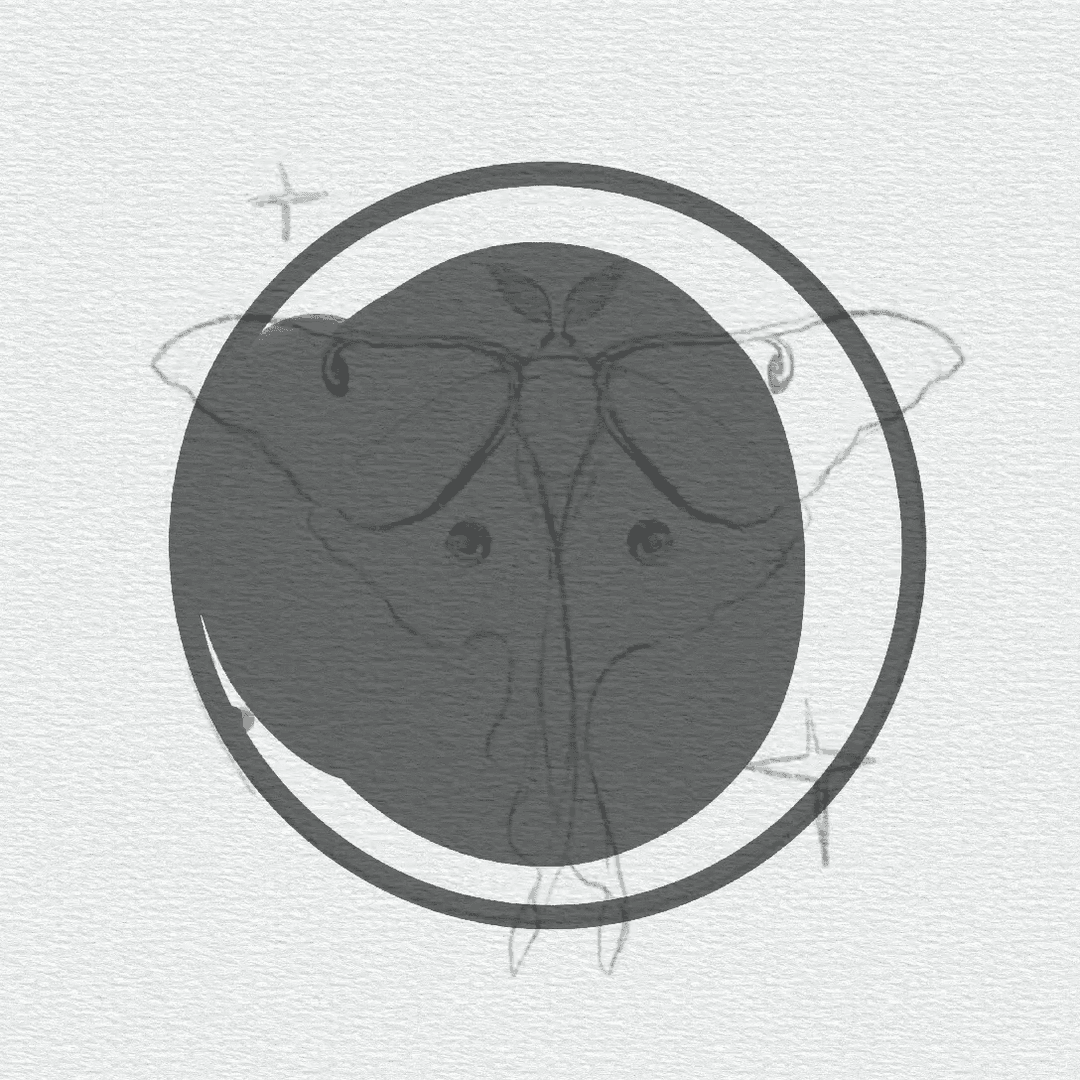
Let's start by creating a sketch of our composition using a 6B or a peppermint brush. Lower the opacity of the layer, rename it as sketch and lock it. Add the background using Freya Paper Texture No. 4 in a light gray color. Move it under the sketch layer and lock it. Next we're going to create a circle using the built-in outline brush from the inking brush group. Fill this shape so that you have solid circle. Now fill the shape with the color white #ffffff. Set the layer mode to Multiply. It will become invisible.
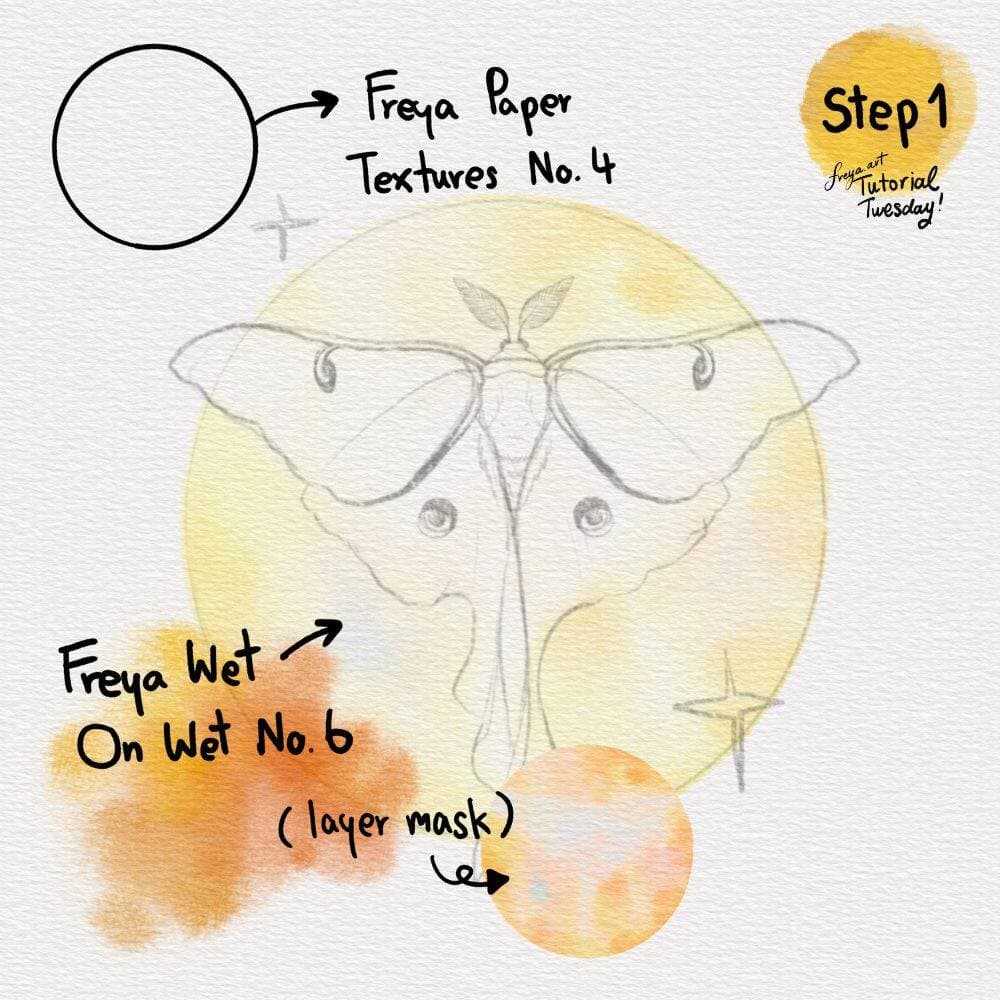
Step 1: Now create another layer, set it as a clipping mask on top of the invisible circle layer. Paint the clipping mask layer using Freya Wet on Wet No. 6 to create your gradient watercolor background.
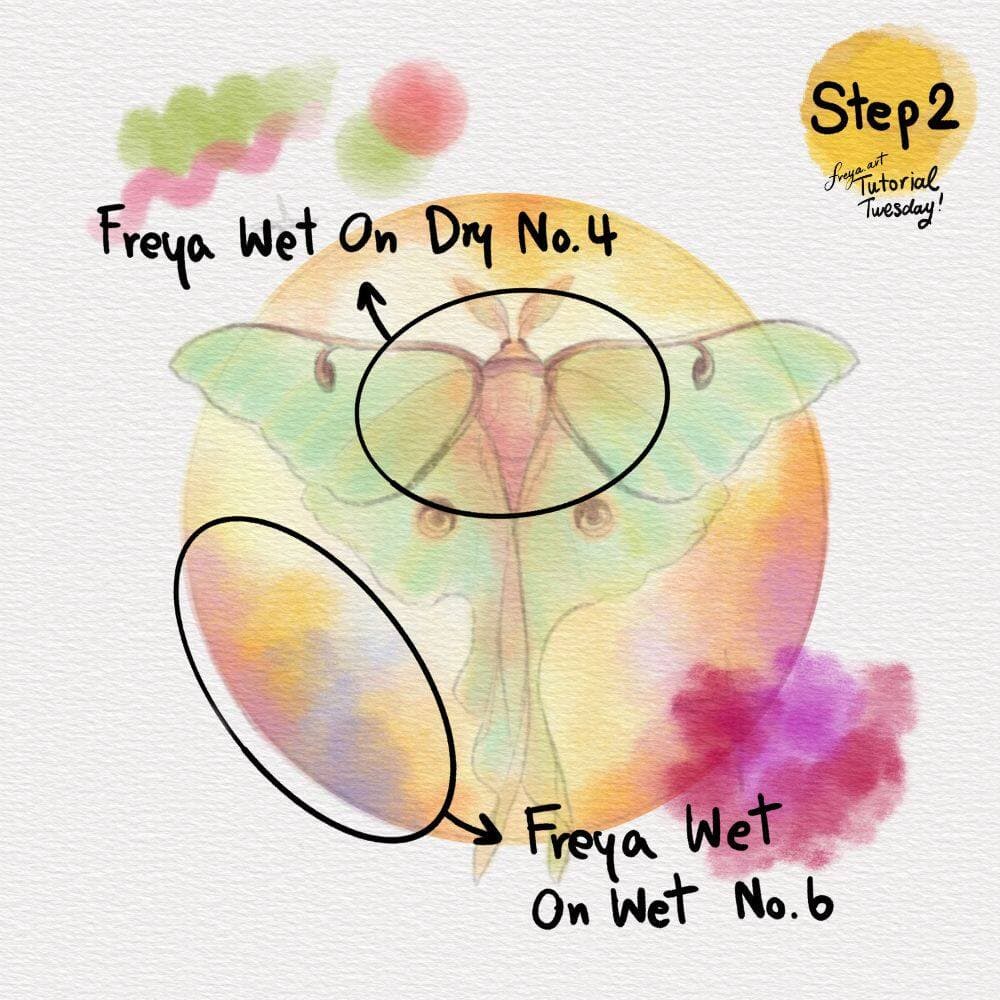
Step 2: On separate layers, start coloring in the outline of the moth, as well as the wings with Freya Wet on Dry No. 4. You can add more gradients to the background using Freya Wet on Wet No. 6 brush.
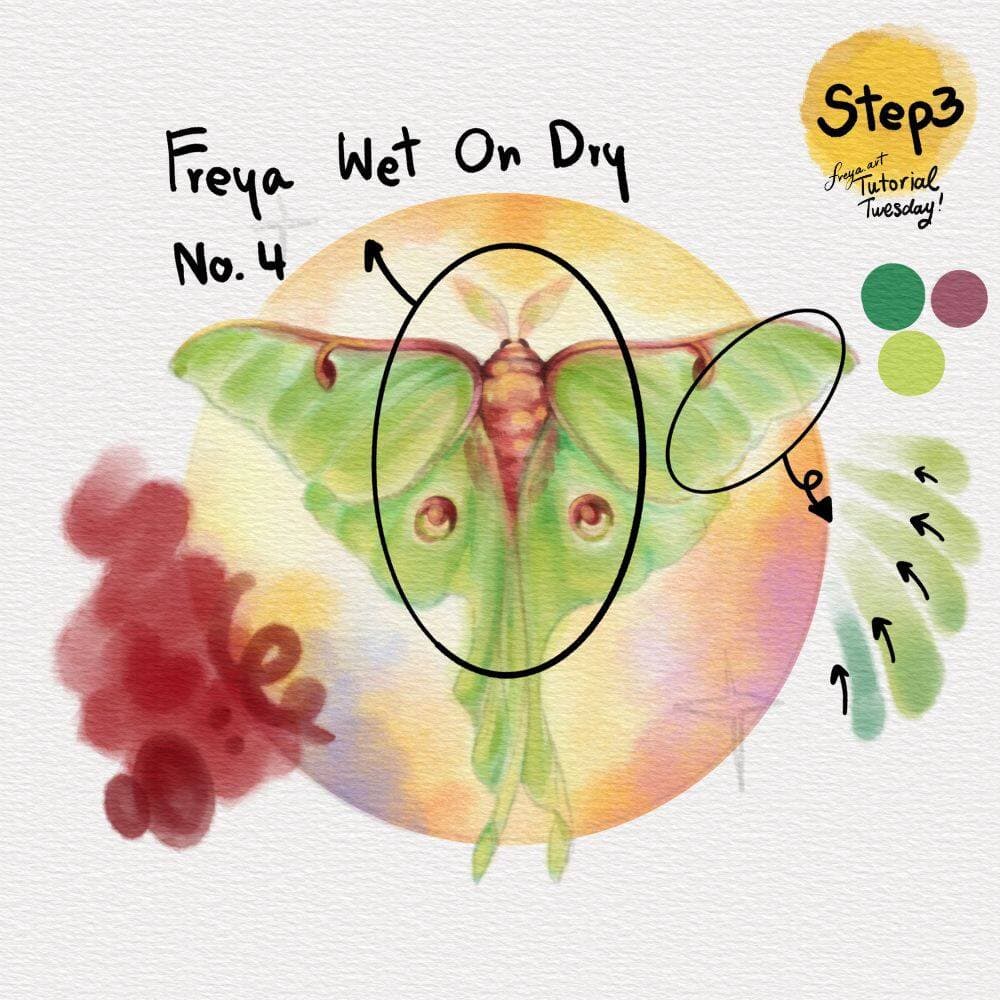
Step 3: Blend in colors using the Freya Wet on Dry No. 4 brush. Remember not to lift the brush if you want to continue blending the colors. Use inward strokes so that the colors fade off towards the moth's body.
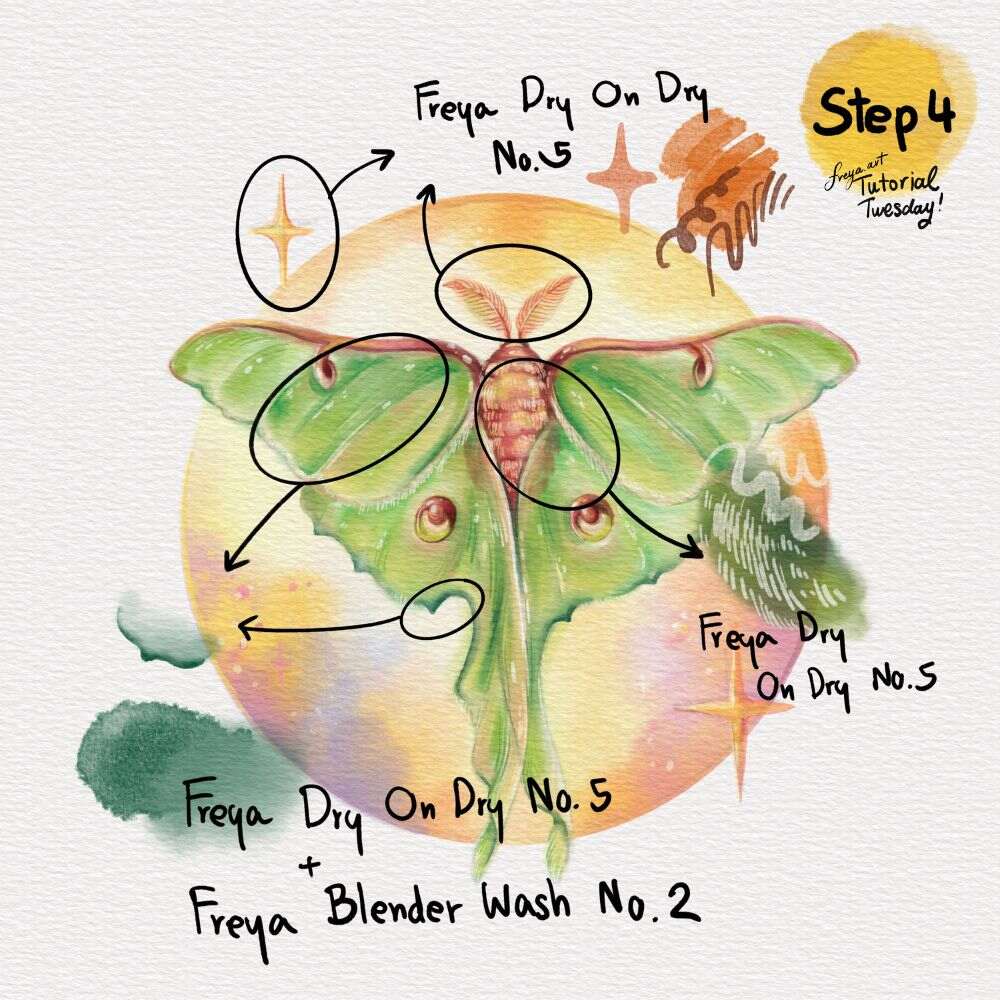
Step 4: Once you're happy with how the wings look, you can start painting the details, highlights, and shadows using Freya Dry on Dry No. 5. Blend in some of the details using Freya Blender Wash No. 2 brush.
Congratulations. You've just completed this tutorial using the free sampler brushes from my Ultimate Watercolor Brush Set.
Try two real lessons from Watercolor Brushset, free
Not a trailer. Actual lessons from the course. After you confirm your email, they open in Freya Studio and stay yours.
Wet On Dry Brushes
The complete lesson, not a preview
Blender Wash Brushes
The complete lesson, not a preview
- Yours after email confirmation
- No card, no trial
- Opens in Freya Studio