Watercolor Lettering Tutorial for Procreate
Create beautiful watercolor lettering in Procreate with Freya's Artistic Lettering Brush Set. You'll master blending and textures too!
Grab the free brush for this tutorial
Made by Freya · works in any Procreate version
Hello and welcome to another tutorial! Today we'll be working on creating a watercolor lettering illustration using the premium brushes from my Freya Artistic Lettering Brush Set. Please download the tutorial files before we begin.
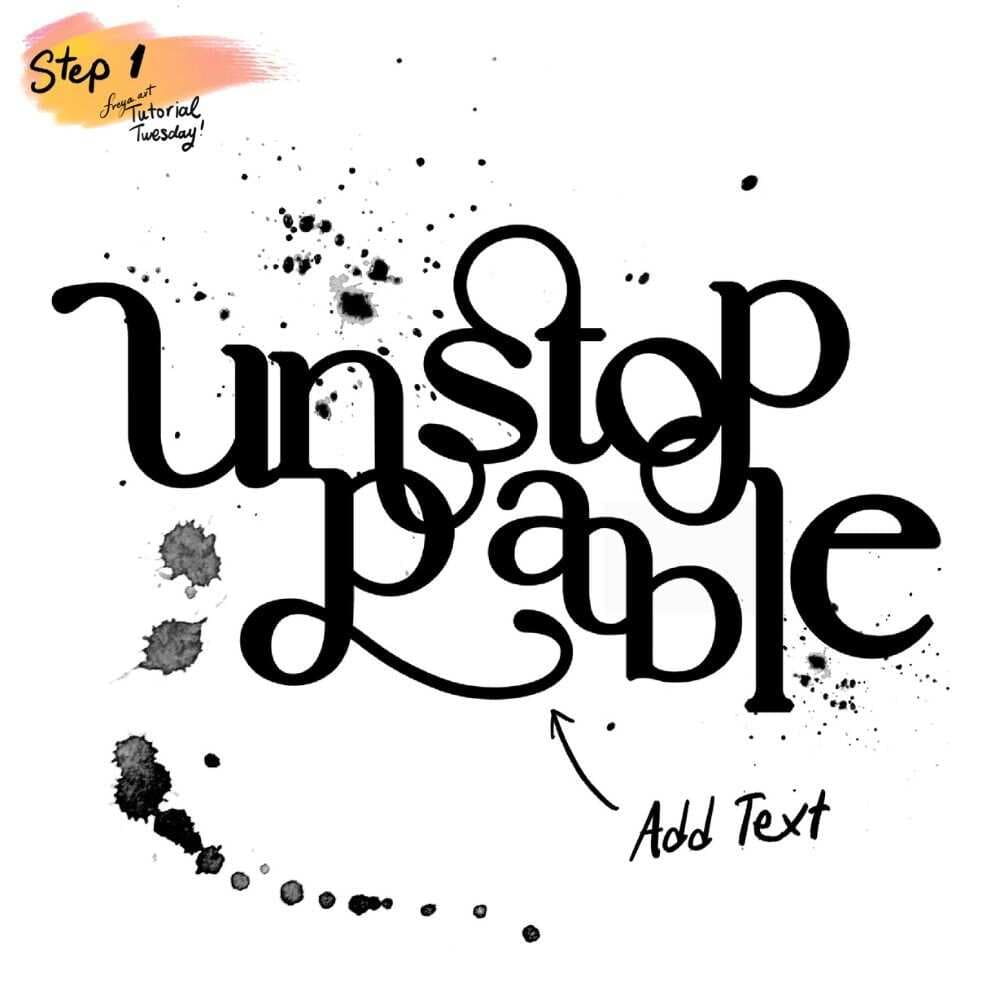
Step 1: First, let's bring in our text. For this project, we're just going to use a fancy font template but you can also do this from scratch.
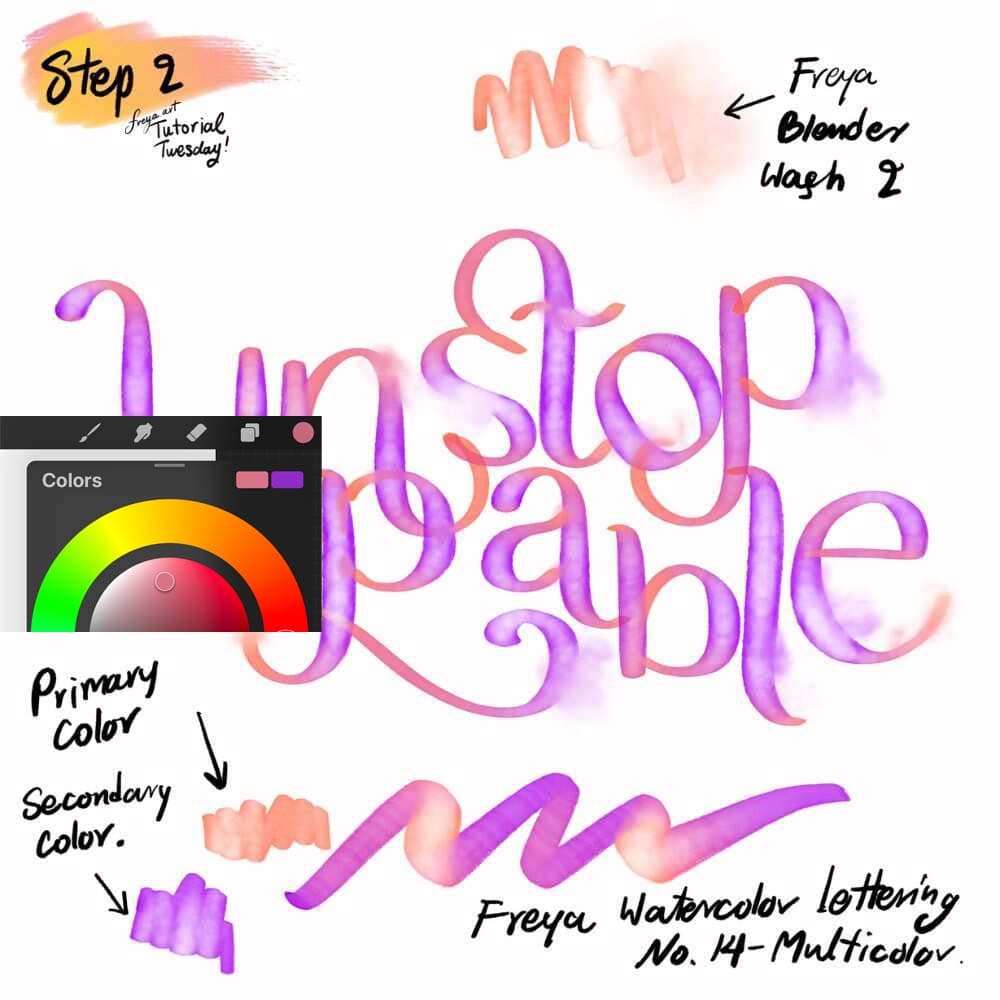
Step 2: Now let's set up the colors we'll use with the Freya Watercolor Lettering No 14 - Multicolor Brush. When using a multicolor brush, you have to choose your primary and secondary colors in the color panel. Paint over your template using this brush. Once you done the lettering, you blend out some of the brush strokes with the Freya Blender Wash No. 2 Brush. This will give it a bit of a washed effect.
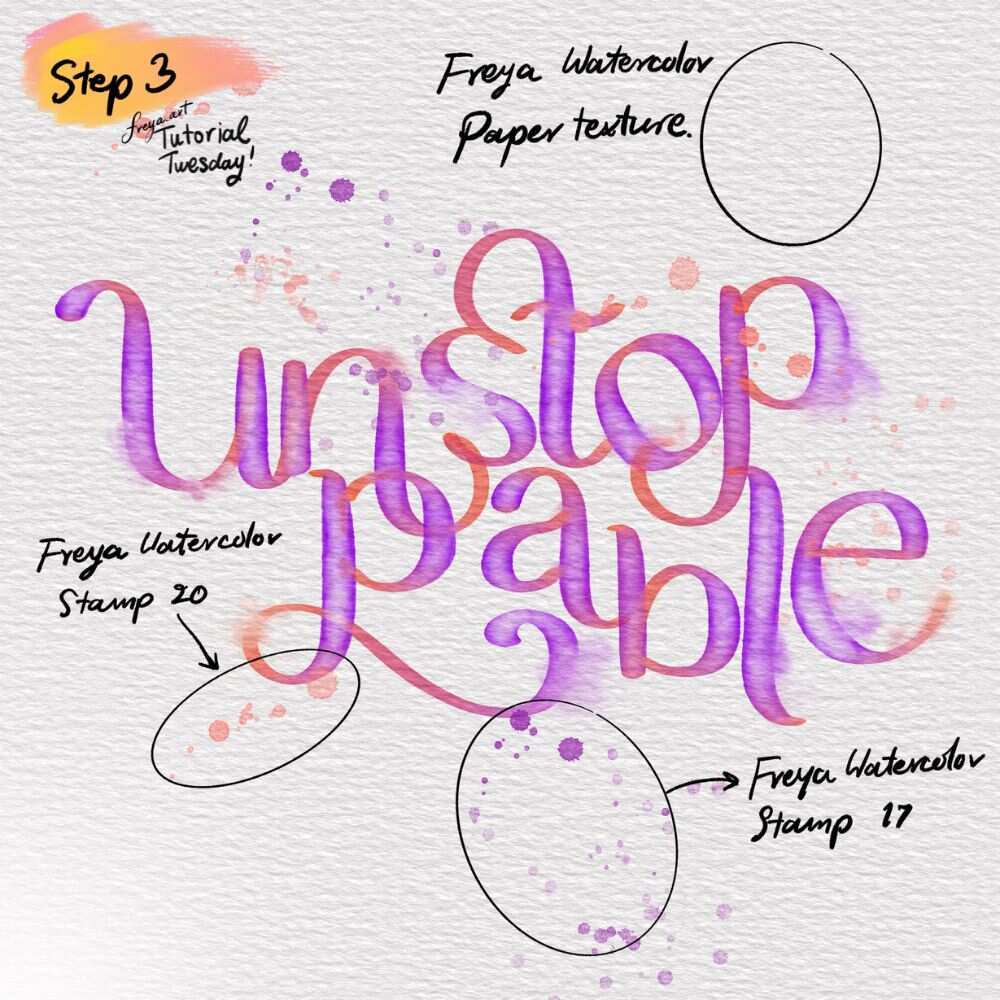
Step 3: In another layer, you can add some extra detail with the Freya Watercolor Stamp 20 and Freya Watercolor Stamp 17 Brush. And finally add a texture layer on top and cover the entire layer with Freya Watercolor Paper Texture Brush in a light grey color. Change the layer mode to LB or Linear Burn. You'll see that your entire artwork now has this realistic canvas look.
Congratulations! You've just completed this quick lettering project using my new Artistic Lettering Brush Set! Please don't forget to tag me if you post your work on Instagram! I'd love to see your version!
Try two real lessons from Artistic Lettering Brushset, free
Not a trailer. Actual lessons from the course. After you confirm your email, they open in Freya Studio and stay yours.
Brush Set Overview
The complete lesson, not a preview
How to Use a Multicolor Brush
The complete lesson, not a preview
- Yours after email confirmation
- No card, no trial
- Opens in Freya Studio