How to Color an Owl Using Procreate Watercolor Brus
Color an adorable owl in Procreate with watercolor brushes! We'll go from initial sketch to adding shadows and creating a pattern.
Grab the free brush for this tutorial
Made by Freya · works in any Procreate version
Hello and welcome to another Watercolor illustration tutorial using the premium brushes from my Ultimate Watercolor Brush Set. Before we begin, kindly download the project files.
In this tutorial, we are going to create a main illustration that we can use as part of a pattern.
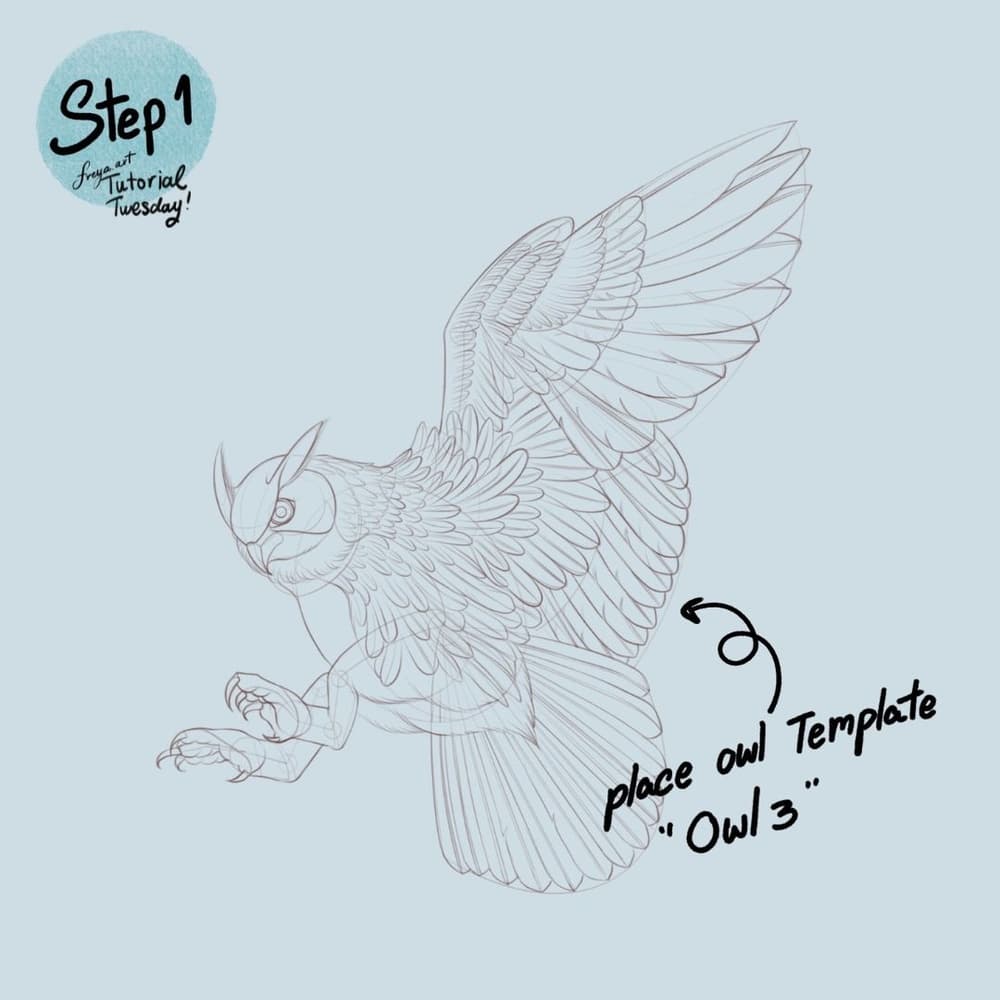
Step 1: Sketch out the your design with the Peppermint brush or 6B brush. In this illustration, I used one of my template brushes. Set the background color to a light muted color.
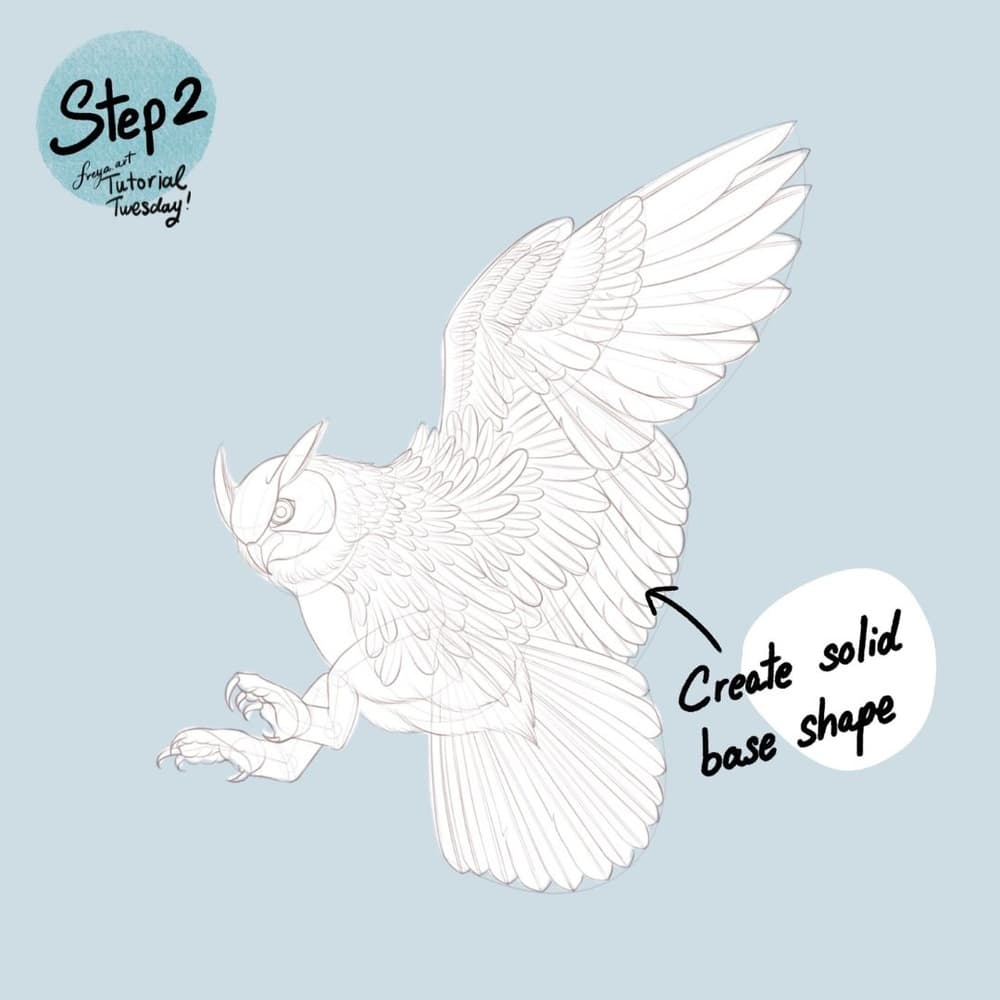
Step 2: Next, add another layer and create a solid white shape under the sketch or template. This will allow us to clip succeeding layers for cleaner coloring and shading later.
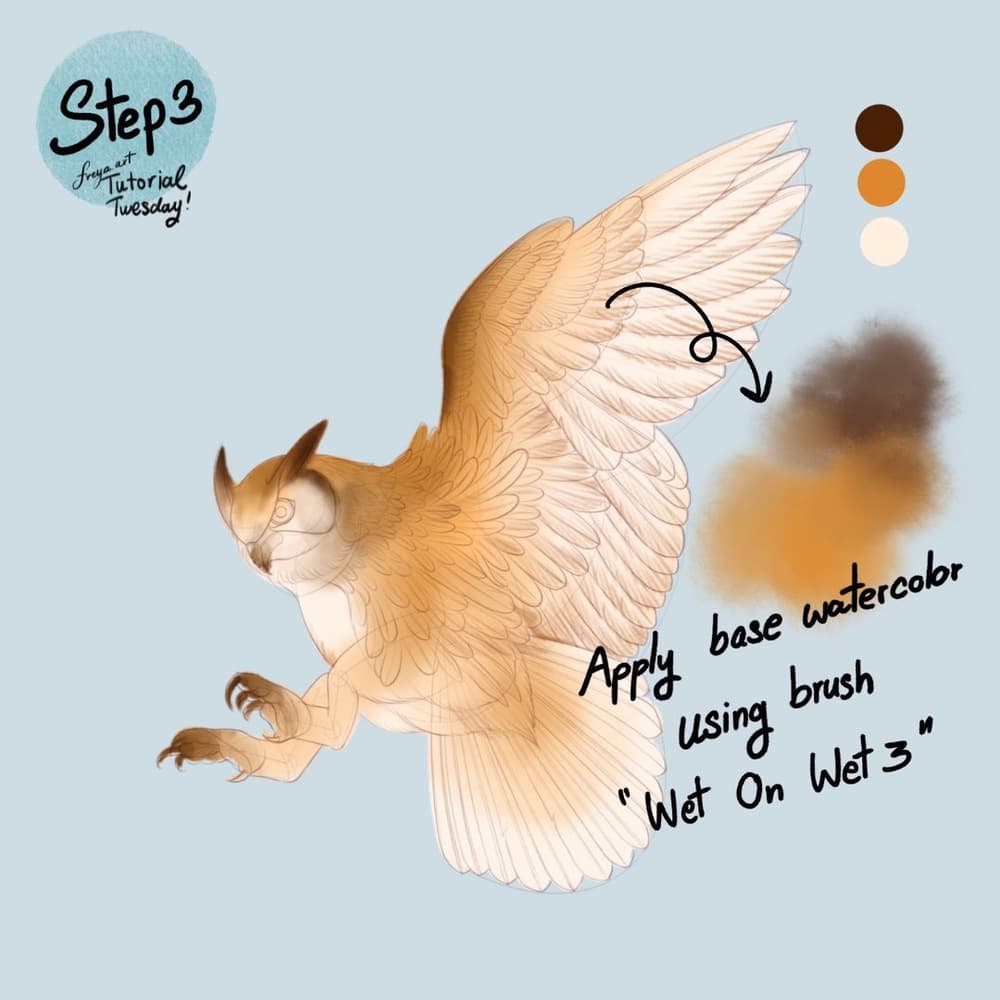
Step 3: Now add a base layer of color using the Wet on Wet Brush No. 3. Make sure to set this as a clipping mask to the white solid base layer. You can work on different layers per color.
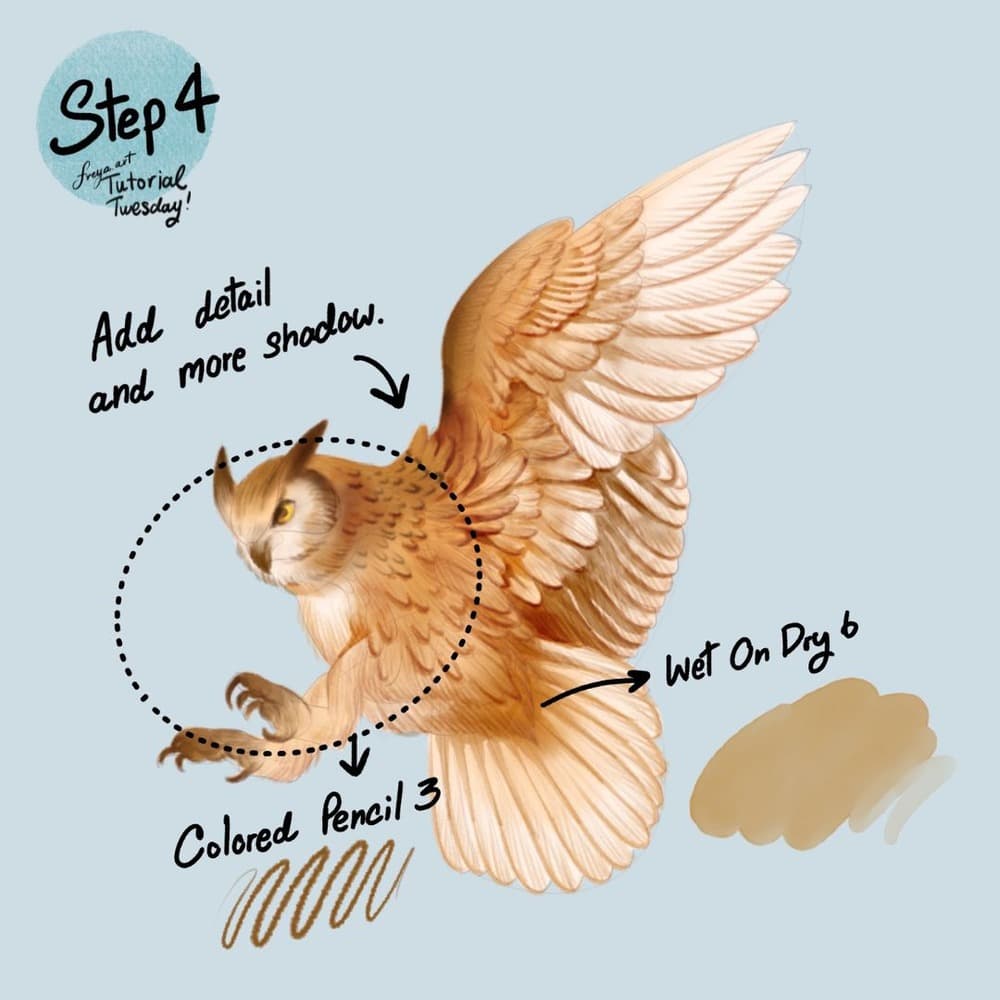
Step 4: In another layer, add details and more shadow using the Colored Pencil Brush No. 3 and Wet on Dry No. 6
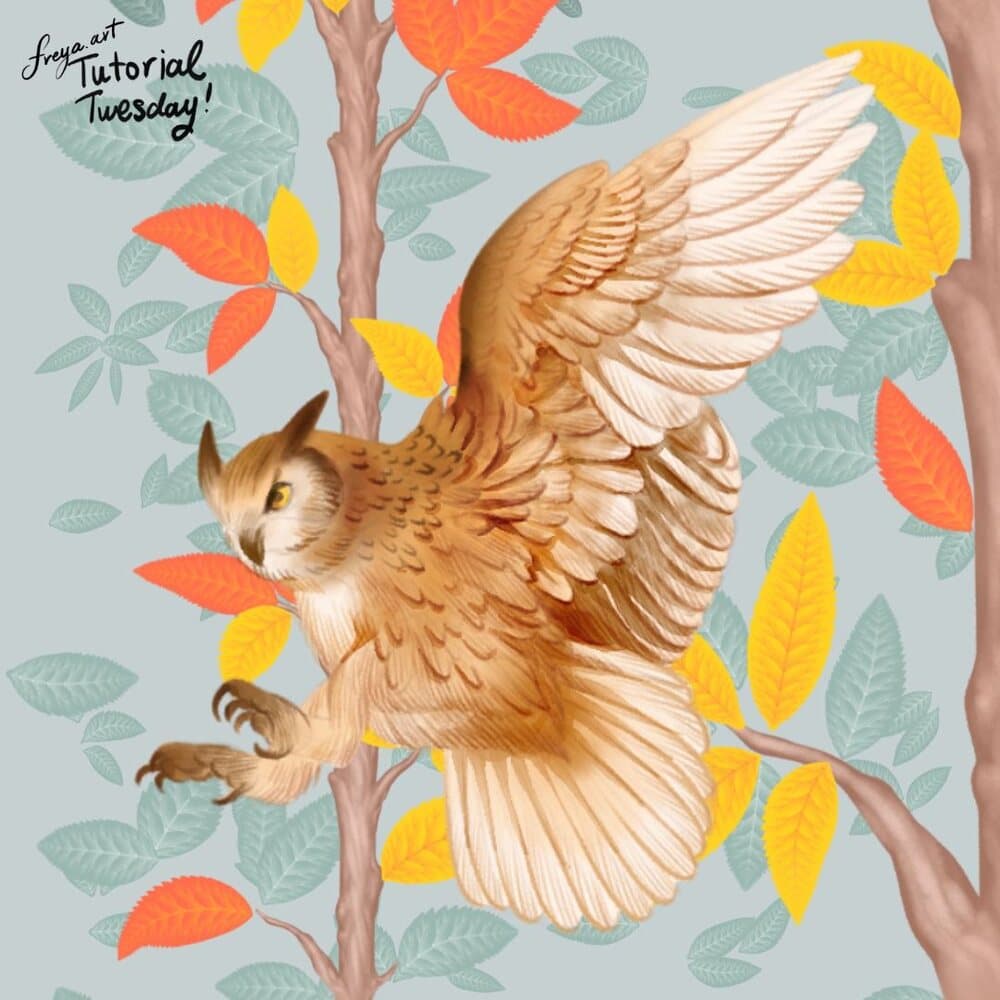
Now that you're done with this illustration, group the layers and label the group as "OWL".
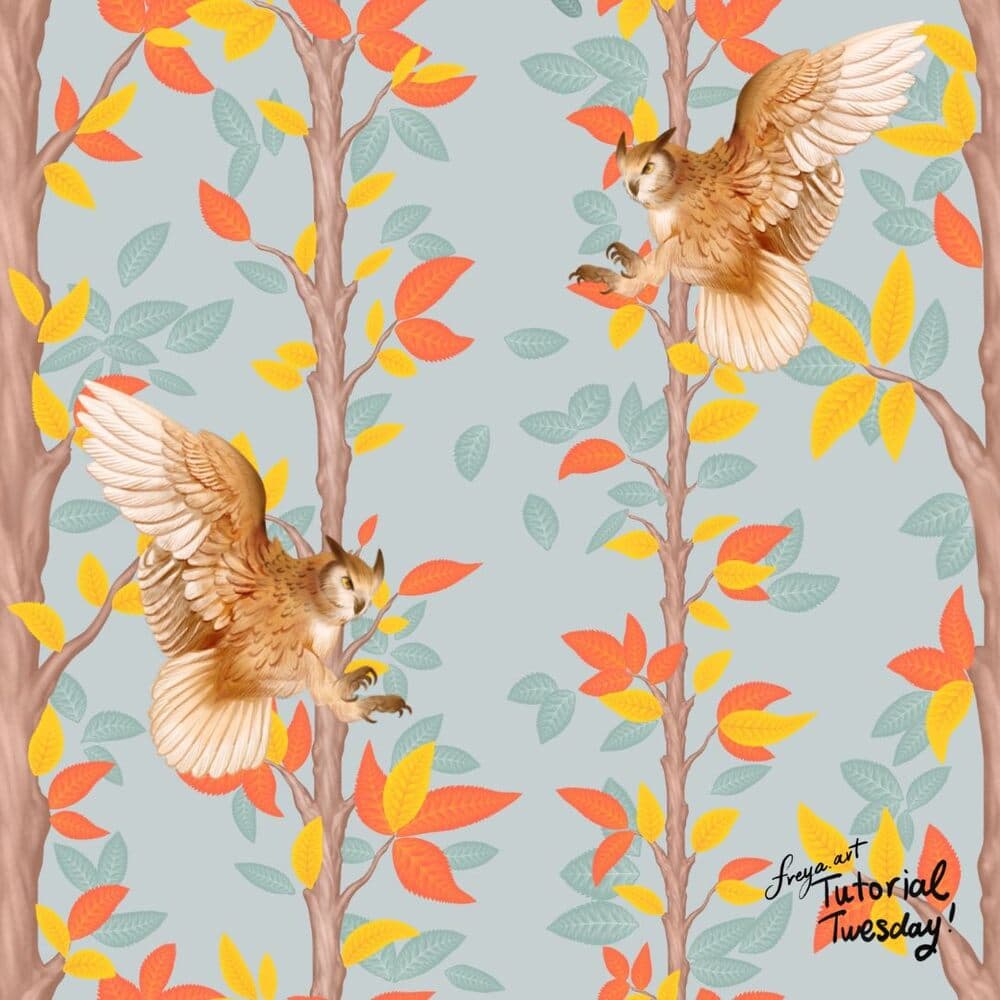
You can then choose to add a background to your illustration. Here I used some of the branch and leaves brushes from my Effortless Flower Brush Set. Once I was happy with the look, I decided to create a pattern by duplicating everything into a new canvas.
Try it! I hope to see your own unique creation! Don't forget to tag me @freya.arts in case you share it on Instagram.
Try two real lessons from Watercolor Brushset, free
Not a trailer. Actual lessons from the course. After you confirm your email, they open in Freya Studio and stay yours.
Wet On Dry Brushes
The complete lesson, not a preview
Blender Wash Brushes
The complete lesson, not a preview
- Yours after email confirmation
- No card, no trial
- Opens in Freya Studio